
How to Set Up Auto-Reply in WhatsApp (Android)
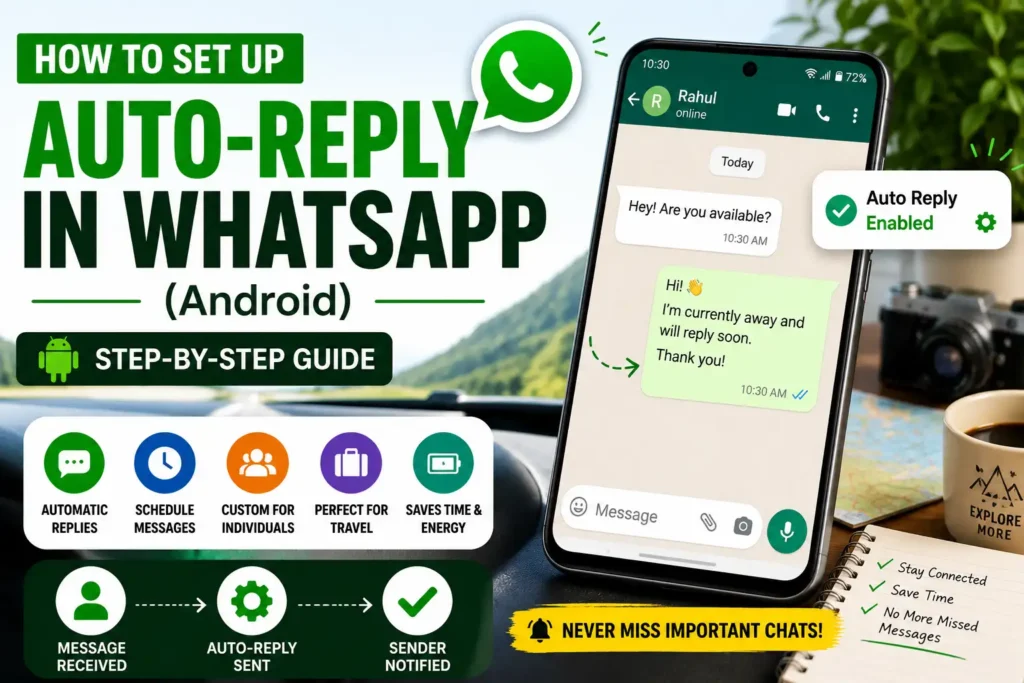
A couple of months back, I was on a road trip with a spotty signal, trying to enjoy some time off. My phone kept buzzing with WhatsApp messages from friends, family, and a few clients I help out with side gigs. By the time I got back to a decent connection, there were dozens of unread chats and people wondering if I was ignoring them. Sound familiar? That frustration pushed me to finally figure out auto-reply properly on Android. It’s not perfect, but it’s a game-changer for anyone who can’t (or doesn’t want to) stare at their screen 24/7.
I’ve tinkered with this on my Samsung and Pixel phones over the past year, tried the official way and some workarounds. Here’s what actually works in real life, the gotchas I ran into, and how you can set it up without losing your mind.
Why Bother With Auto-Reply on WhatsApp?
Life gets busy. You’re driving, in a meeting, sleeping, or just need to disconnect. Without something in place, people assume the worst. I remember one time a family member panicked because I didn’t reply for hours during a long flight. An auto-reply lets them know you’re away and when they might hear back. For freelancers or small business folks using the same number, it keeps things professional without you burning out.
The good news? WhatsApp has built-in options if you switch to their Business app. For regular personal use, you’ll need to get creative with third-party tools. Both have pros and cons I’ll walk through.
The Easiest Official Way: WhatsApp Business Away Messages
If you can use WhatsApp Business (it works alongside your personal account on the same phone), this is the cleanest route. I migrated one of my numbers to Business last year and haven’t looked back for client comms.
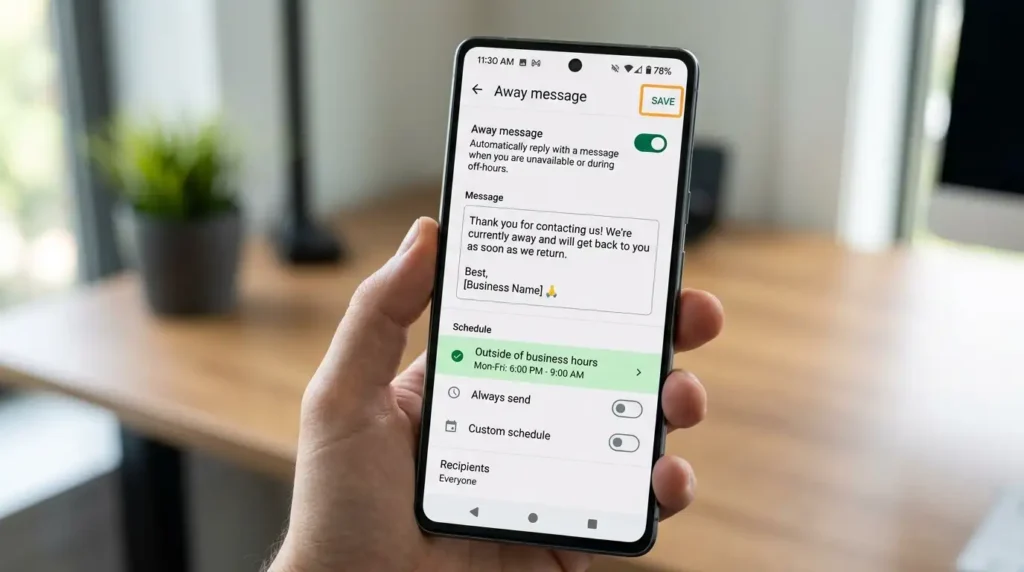
Step-by-step to set it up:
- Download and install WhatsApp Business from the Google Play Store if you don’t have it. Verify with your number (you can use a secondary SIM or even the same one with some juggling).
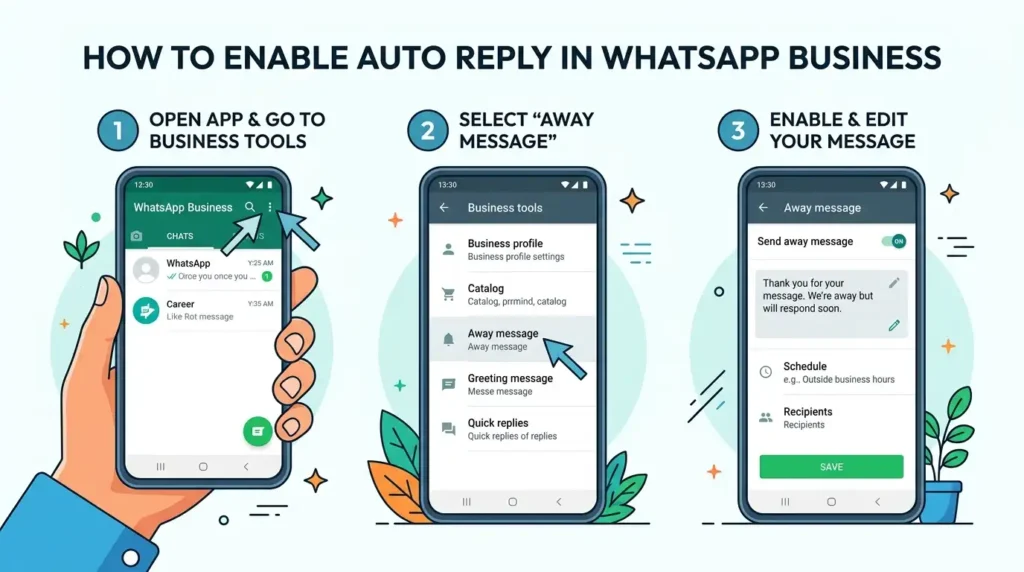
- Open the app and head to the Tools tab (or Business tools – it might say Settings > Business tools depending on your version).
- Tap Away message.
- Toggle on Send away message.
- Edit the message. Keep it short and friendly. Something like: “Hey! I’m away right now and will get back to you by tomorrow evening. For urgent stuff, call me.” You can add emojis or even attach a quick image if needed.
- Set the Schedule. Options include:
- Always send
- Outside business hours (set your hours in the profile)
- Custom schedule for specific days/times
- Choose Recipients: Everyone, only contacts, or specific people. I usually go with “Everyone except…” for close family.
Hit save, and you’re done. Test it by asking a friend to message you while the feature is active.
I learned the hard way that the phone needs an internet connection for the away message to send. If you’re completely offline, it won’t trigger until you’re back online. Also, it only sends once per conversation until you reply manually.
Quick Replies and Greeting Messages in Business
While you’re in there, set up greeting messages for new chats and Quick replies for common responses. Quick replies are gold – type a slash (/) and a shortcut like “/price” and it expands to your full message. I use these daily for FAQs.
For Personal WhatsApp: Third-Party Auto-Reply Apps
Regular WhatsApp doesn’t have native auto-reply. I tried workarounds like Tasker automations, but they’re finicky. Apps like Whatauto or AutoResponder for WhatsApp are popular on Android.
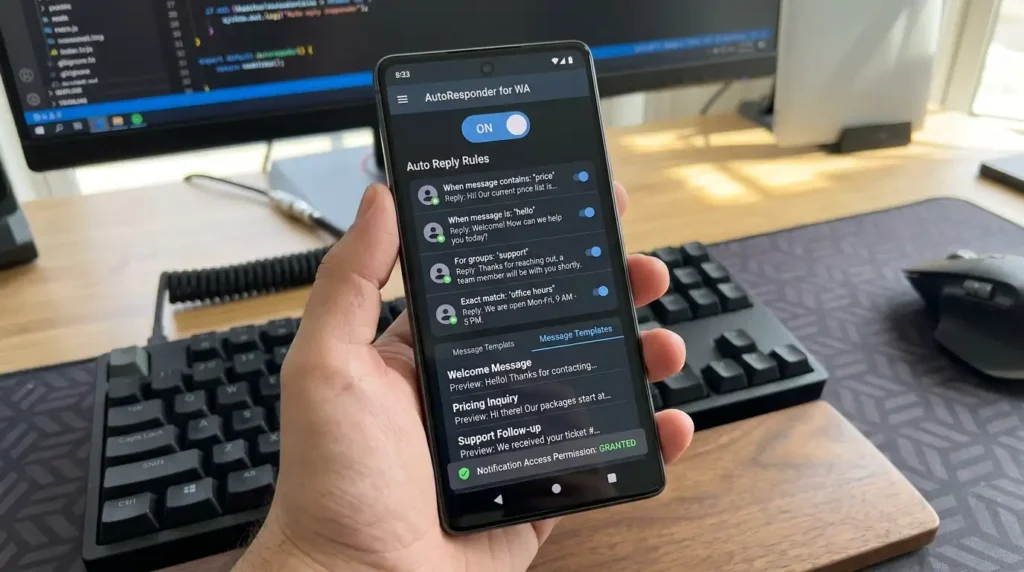
I tested Whatauto on my daily driver. Here’s how it went:
- Install from Play Store.
- Grant notification access and other permissions (this is where it gets sensitive – you’re giving the app a lot of power).
- Set rules: reply to everyone, specific contacts, keywords, or groups.
- Customize delay, message, and even random replies to make it feel less robotic.
It worked decently for simple cases. I set it to reply “Driving right now, text you later” during certain hours. But after a week, I noticed higher battery drain and one weird bug where it replied in a group chat multiple times. Not ideal.
Warning from experience: These apps access your notifications and can read/send messages. They might violate WhatsApp’s terms, leading to temporary bans if overused. Use sparingly, stick to reputable apps with good reviews, and never give them your full login credentials. I always turn them off when not needed.
Real-Life Use Cases That Made a Difference
- Freelance work: I set business hours away messages. Clients feel acknowledged instead of ghosted.
- Vacation mode: Custom message with an alternative contact. One trip to the mountains, this saved me from a work emergency blowing up my phone.
- Night owl to early bird: Schedule replies after 10 PM, saying I’ll respond in the morning. My sleep improved, and friends stopped worrying.
Unexpected bonus: It forced me to batch replies, which made my conversations more thoughtful.
Common Mistakes to Avoid
I’ve made most of these, so you don’t have to:
- Too generic messages: “I’m busy” sounds cold. Add context and a timeline.
- Forgetting to turn it off: Came back from a weekend away and left it on for days. Awkward.
- Over-relying on automation: Auto-replies handle the first message, but don’t ignore people. I try to follow up personally within a reasonable time.
- Permissions issues: On newer Android versions (like 14/15), battery optimization can kill background auto-reply apps. Go to Settings > Apps > Your auto app > Battery > Unrestricted.
- Testing on yourself: Always test with a secondary number or friend. I once set a funny reply that went to my boss by mistake.
Also, group chats behave differently. Some apps reply to every message in busy groups – recipe for chaos.
Tips for Better Auto-Replies
- Personalize when possible. Apps like Whatauto let you use rules based on sender name or keywords.
- Combine with Do Not Disturb. Android’s focus modes pair nicely.
- For advanced users: If you’re into automation, tools like MacroDroid or Tasker can trigger replies with more conditions, but the learning curve is steep.
- Keep messages under 1-2 sentences. People skim on mobile.
- Update your status or profile to reinforce the message.
I’ve seen friends use AI-powered responders (via third-party services), but I stick to simple text to avoid sounding fake or dealing with more privacy headaches.
My Honest Take After Using It Daily

Auto-reply isn’t a replacement for being present, but it’s a solid boundary tool. On Android, WhatsApp Business is the most reliable for semi-serious use. Third-party apps work in a pinch but feel like a band-aid. The biggest lesson? Set it and mostly forget it, but check in regularly.
If you’re running a small business, definitely go the Business app route and explore the full tools. For personal life, start simple.
What’s your biggest WhatsApp pain point? Drop it in the comments – I read them.
FAQ
Can I set auto-reply on regular WhatsApp without extra apps? Not natively. You need WhatsApp Business or a third-party tool.
Does it work when the phone is off or without internet? No. Needs power and connection for most solutions.
Will I get banned for using auto-reply apps? Possible if abused. Use responsibly and avoid spammy behavior.
Can I set different replies for different people? Yes, in Business (via recipients) and good third-party apps (rules).
Is there a way for voice message auto-replies? Not easily with built-in tools. Some apps support media, but it’s limited.
How do I stop auto-replies? Just toggle off in settings or disable the app.
Disclaimer
This article is based on my personal experience testing these features on Android devices. WhatsApp features and policies can change, and third-party apps carry risks including account suspension or privacy concerns. Always follow WhatsApp’s terms of service, review app permissions carefully, and back up your chats. I’m not affiliated with any apps mentioned. Use at your own risk and test thoroughly.

Written by: Krunal,
Founder & Tech Writer at ToolsVila.online
I help people solve everyday tech problems with simple and practical guides. Over 6 years of hands-on experience with WordPress, Windows, Android & digital tools.