
Windows Keyboard Shortcuts That Will Save You Hours Every Week
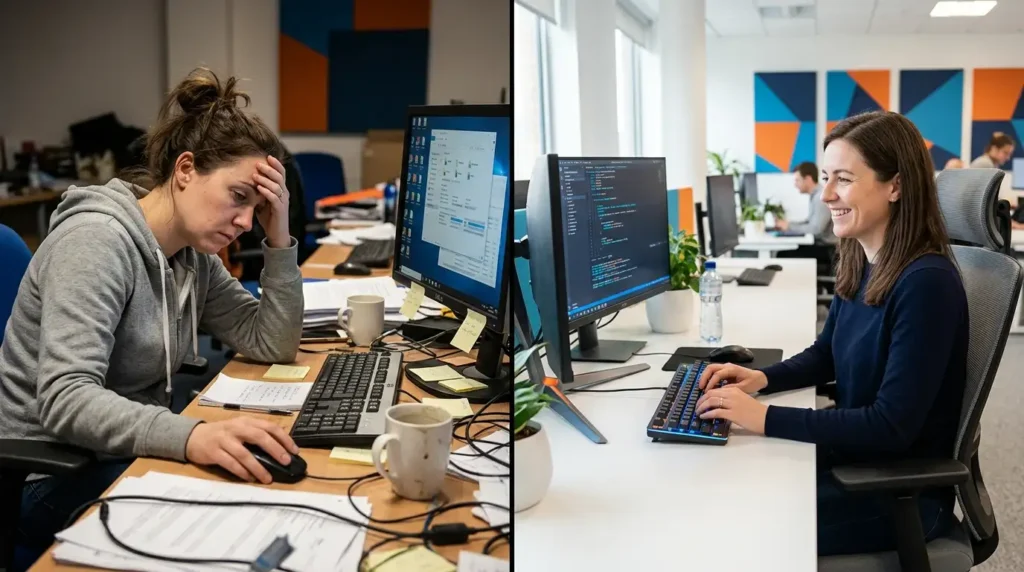
I’ve been glued to a Windows PC for over 15 years now, first as a broke freelancer juggling multiple gigs, then running my own tech blog and editing videos late into the night. Let me tell you something from painful experience: those extra seconds you waste reaching for the mouse or digging through menus add up to hours every single week.
I used to be that guy constantly switching between Chrome tabs, File Explorer windows, and Word documents with my trackpad. One particularly brutal deadline week, I timed myself. I was losing almost 40 minutes a day just on navigation. After forcing myself to learn and actually use keyboard shortcuts, that number dropped dramatically. My wrists thanked me, and I started shipping work faster.
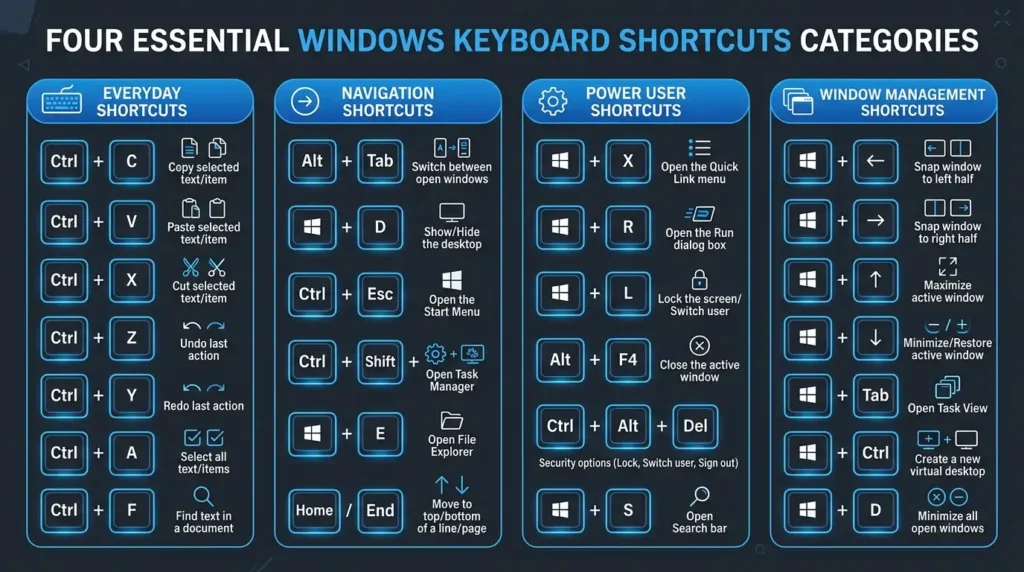
These aren’t just random combos I pulled from a help file. These are the ones I’ve hammered into muscle memory because they genuinely save me time every day. Here’s my personal list of 20 Windows keyboard shortcuts that will actually change how you use your computer.
The Everyday Heroes You Probably Already Know (But Might Not Use Enough)
1. Ctrl + C, Ctrl + X, Ctrl + V (Copy, Cut, Paste). Yeah, I know. Everyone knows these. But here’s the thing: I still see people right-clicking to copy a file or block of text. Stop it. These three are the foundation.
Pro tip from real use: Ctrl + Shift + V is a lifesaver when pasting into emails or docs without bringing over weird formatting. I use it constantly when pulling notes from web pages.
2. Ctrl + Z (Undo) and Ctrl + Y (Redo). I’ve accidentally deleted entire paragraphs more times than I can count. Ctrl + Z has saved my skin repeatedly. The best part? It works in File Explorer too. Accidentally moved a folder to the wrong place? Undo it instantly.
I once watched a colleague spend 10 minutes trying to recreate a messed-up Excel formula. I leaned over, hit Ctrl + Z a few times, and fixed it in seconds. His face was priceless.
3. Ctrl + A (Select All) Obvious until you need to select 200 files in a folder or everything on a page. Pair this with Ctrl + C, and you’re flying.
4. Ctrl + S (Save): I developed a nervous habit of hitting this every few minutes after losing two hours of work to a power flicker years ago. Now it’s automatic. Save early, save often.
5. Ctrl + P (Print): When I need a hard copy or PDF, this is faster than hunting through menus.
Navigation Shortcuts That Feel Like Cheating
6. Alt + Tab (Switch Between Apps). This is probably my most-used shortcut after the basics. Hold Alt and tap Tab to cycle through open windows.
I juggle between a browser, code editor, chat apps, and Spotify all day. Alt + Tab turns this chaos into a smooth flow. If you have a lot of windows open, Alt + Tab and then the arrow keys let you pick precisely.
7. Windows Key + D (Show Desktop). Need to quickly glance at your desktop icons or just hide the mess? Win + D. Hit it again to restore everything.
During video calls, I use this constantly to hide whatever tabs I have open. No more awkward “let me just minimize these real quick” moments.
8. Windows Key + E (Open File Explorer) Instant Explorer window. No more clicking the taskbar icon. I use this probably 20 times a day when managing photos, downloads, or project folders.
9. Windows Key + L (Lock Your PC). Security nerds, this one’s for you. Step away from your desk? Win + L. It locks instantly. I do this out of habit now, even at home.
10. Ctrl + Shift + Esc (Open Task Manager Directly) Forget Ctrl + Alt + Del and then clicking Task Manager. This combo goes straight there. When Chrome eats up all your RAM (we’ve all been there), this is your rescue button.
Power User Shortcuts I Wish I’d Learned Sooner
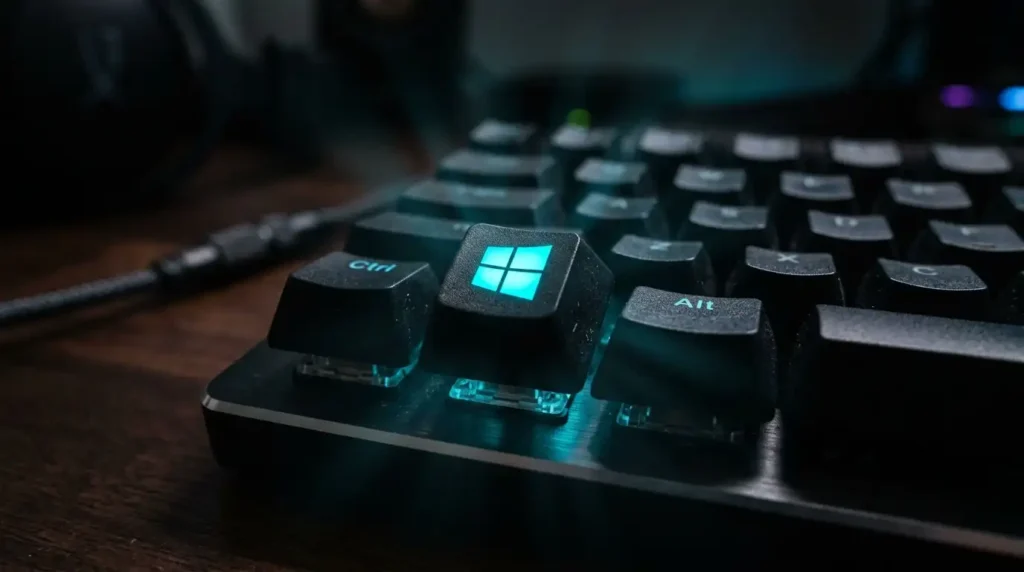
11. Windows Key + R (Run Dialog). Type commands directly. Want to open Notepad? Type “notepad.” Clean up with “cleanmgr.” Open System Configuration with “msconfig.” This one feels old-school, but it’s incredibly fast.
12. F2 (Rename File/Folder) Select a file in Explorer and hit F2. No right-click needed. When I’m organizing a big batch of files from a shoot or download, this shaves off serious time.
13. Windows Key + Shift + S (Snipping Tool Screenshot). This changed my life for documentation and bug reports. Select any part of the screen, annotate, and copy. I use it for tutorials, sharing quick feedback with my editor, or saving reference images.
14. Windows Key + V (Clipboard History) This is pure gold. Copy multiple things throughout the day and access them all later. I copy different code snippets, quotes, or links and pull them when needed without losing anything. Enable it in Settings if it’s not already on.
15. Windows Key +. (Period) (Emoji Picker) Yes, really. Win +. brings up emojis, symbols, and kaomoji. Makes emails and Slack messages way less boring.
Window Management Magic
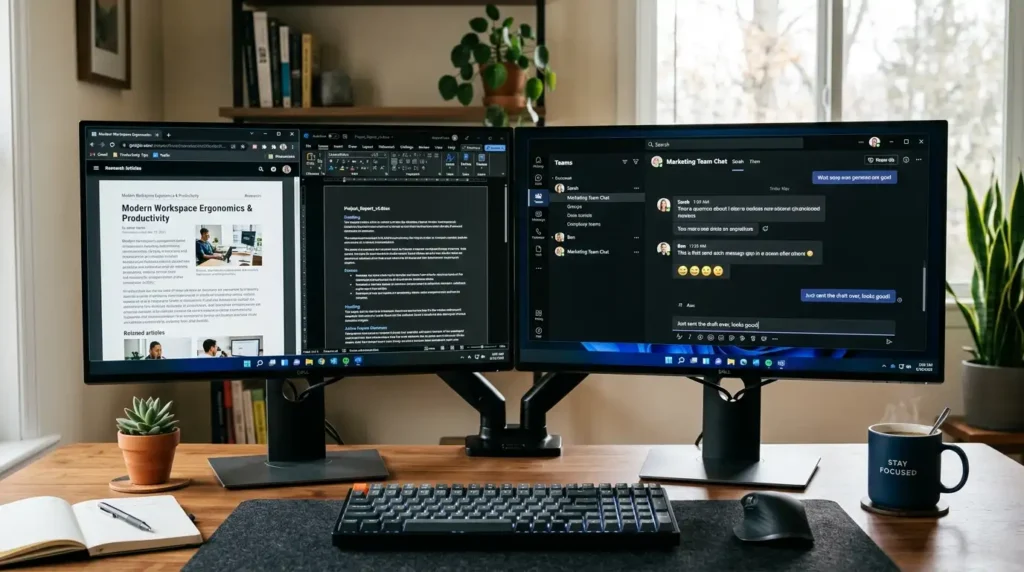
16. Windows Key + Arrow Keys (Snap Windows). This is fantastic for multitasking. Snap a window left, right, up, or down. Combine with multiple arrows for quadrants. I often have my research browser on one side and my writing app on the other.
17. Alt + F4 (Close Active Window): Close whatever you’re looking at instantly. Works on apps, browsers, and File Explorer. Careful with it, though I once closed a browser with 30 tabs open by mistake.
18. Windows Key + Tab (Task View / Virtual Desktops). Virtual desktops are underrated. I have one for deep work, one for communication, and one for entertainment. Win + Tab lets you manage them easily. Create new ones with Ctrl + Win + D.
19. Ctrl + T (New Browser Tab) and Ctrl + Shift + T (Reopen Closed Tab) are browser-specific but universal across Chrome, Edge, and Firefox. The reopen closed tab one has saved me more times than I can count when I accidentally close an important page.
20. Windows Key + Shift + M (Restore Minimized Windows) After minimizing everything with Win + M or D, this brings them back. Great for quick desktop access and recovery.
Common Mistakes I’ve Made (So You Don’t Have To)
- Over-relying on the mouse first: For the first few weeks, I kept forgetting the shortcuts existed. The fix? Print a cheat sheet and stick it near your monitor for a month.
- Forgetting context matters: Some shortcuts only work in specific apps. F5 refreshes a browser but also works in Explorer.
- Not customizing: Windows lets you create custom shortcuts for apps via properties. I set up one for my most-used writing app.
- Ignoring accessibility: Some of these (especially snapping and Task View) are even more powerful with a good keyboard. I upgraded to a mechanical keyboard with a proper Windows key, and it felt like an upgrade to my whole workflow.
One funny story: Early on, I tried showing off these shortcuts to a non-tech friend. I hit Win + Shift + S dramatically to take a screenshot… and nothing happened because I hadn’t enabled the Snipping Tool properly. Lesson learned: test them on your specific setup.
Making These Stick in Real Life
Start small. Pick five that solve your biggest daily frustrations and drill them for a week. For me, it was Alt + Tab, Win + D, Win + E, Ctrl + Shift + Esc, and the snipping tool. Once those became automatic, adding more was easy.
If you use multiple monitors as I do, the snapping and virtual desktop combos become even more powerful. I can have my email and Slack on one screen, research on another, and writing in the middle without touching the mouse much.
These shortcuts work great on Windows 10 and 11 (I’ve tested most on both). Some newer ones, like better clipboard history and an emoji panel, feel especially polished in Windows 11. support.microsoft

FAQ
Q: Do these shortcuts work on laptops too? Yes, most do. Some laptops have a “Fn” lock that might affect function keys like F2. Check your keyboard settings.
Q: Can I create my own shortcuts? For specific apps, yes. Right-click the app shortcut > Properties > Shortcut key. System-wide custom shortcuts need third-party tools like AutoHotkey.
Q: Why don’t I remember them all? Because you’re human. Focus on the ones you use most. Muscle memory builds faster when the shortcut solves an actual annoyance.
Q: Are there similar shortcuts for Mac? There are, but they’re different (Command key instead of Ctrl mostly). The philosophy is the same, though.
Q: Do these work in remote desktops or virtual machines? Some do; some depend on the remote software settings. Test them.
Disclaimer
This article is based on my personal experience using Windows daily for work. Shortcuts can vary slightly depending on your Windows version, keyboard layout, or installed software. Always make sure you have your work saved before experimenting with new combos. I’m not affiliated with Microsoft, just a guy who likes getting stuff done faster.
Look, I could have made this list longer, but these 20 are the ones that deliver the biggest return on investment for most people. Once you start using them, going back to heavy mouse use feels painfully slow. Drop a comment with your favorite shortcut that I missed. I’m always learning new ones from readers. Now go try a couple. Your future self (with way more free time) will thank you. What shortcut are you going to start using today?

Written by: Krunal,
Founder & Tech Writer at ToolsVila.online
I help people solve everyday tech problems with simple and practical guides. Over 6 years of hands-on experience with WordPress, Windows, Android & digital tools.