
How to Schedule Emails in Gmail (Send Later Feature)
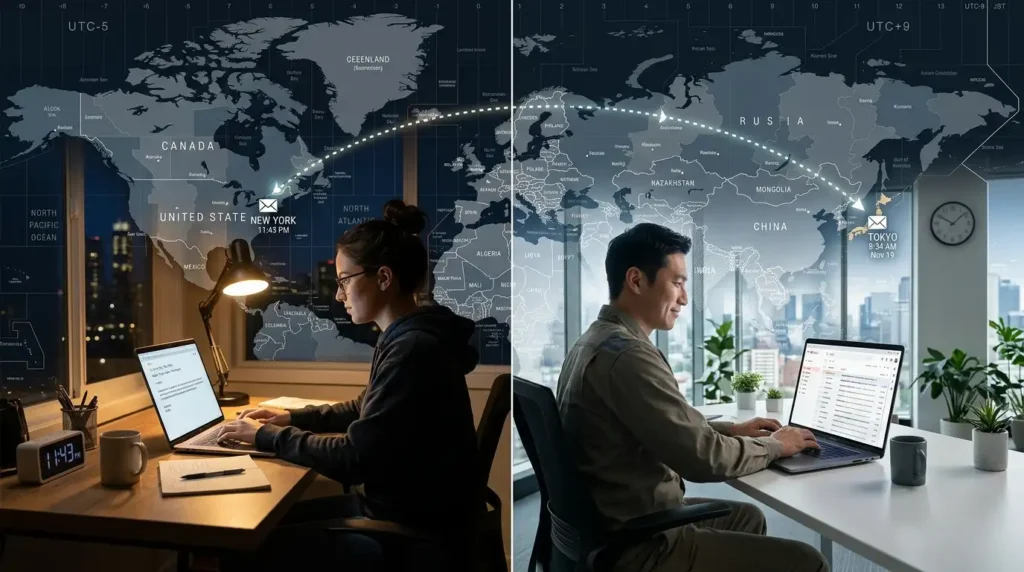
I’ve been using Gmail for over 12 years, first for personal stuff, then running client projects, freelance writing gigs, and managing my tech blog newsletter. One of the biggest game-changers for me was discovering the “Schedule Send” feature (also called Send Later).
I still remember one Monday morning when I woke up at 6 AM to send an important proposal to a potential client in a different time zone. Instead of risking it getting buried in their inbox overnight, I wrote it the night before and scheduled it to land right when they started their day. That single email helped close a decent project. Since then, I’ve used scheduling for everything from follow-up emails to birthday wishes and team updates.
If you’re like me, someone who overthinks timing or works across time zones, this feature is pure gold. Here’s everything I’ve learned from actually using it daily.
Why I Started Scheduling Emails
Early in my freelance days, I had terrible timing with emails. I’d send important messages at 11 PM and wonder why I got no replies. Or I’d forget to follow up with someone because life got busy.
Scheduling solved both problems. Now I can write an email when I’m focused (often late at night) and have it delivered at a professional time. It also helps me batch my email work instead of constantly checking and sending things one by one.
Gmail’s built-in Schedule Send is free, simple, and works on both desktop and mobile. No need for third-party tools unless you want advanced features.
How to Schedule an Email in Gmail (Desktop – Step by Step)
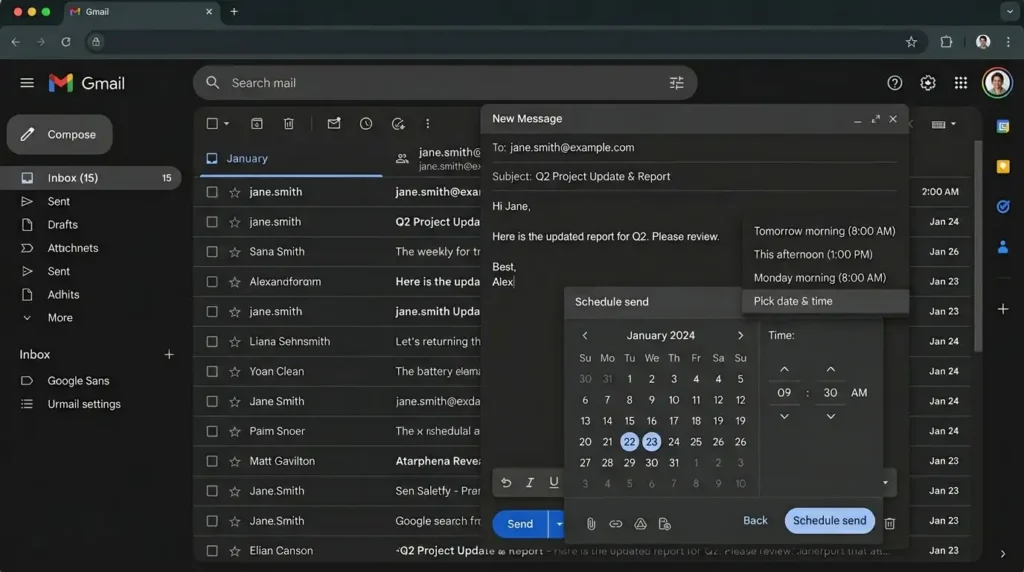
This is the way I do it most often on my laptop.
- Open Gmail and click the big Compose button (top left).
- Write your email normally — add recipient, subject, message, attachments, everything.
- Instead of clicking the blue Send button, look for the small down arrow right next to it.
- Click that arrow → select Schedule send.
- Gmail will show some suggested times (like tomorrow morning, next Monday, etc.). Pick one or click Pick date & time for full control.
- Choose your exact date and time, then hit Schedule send.
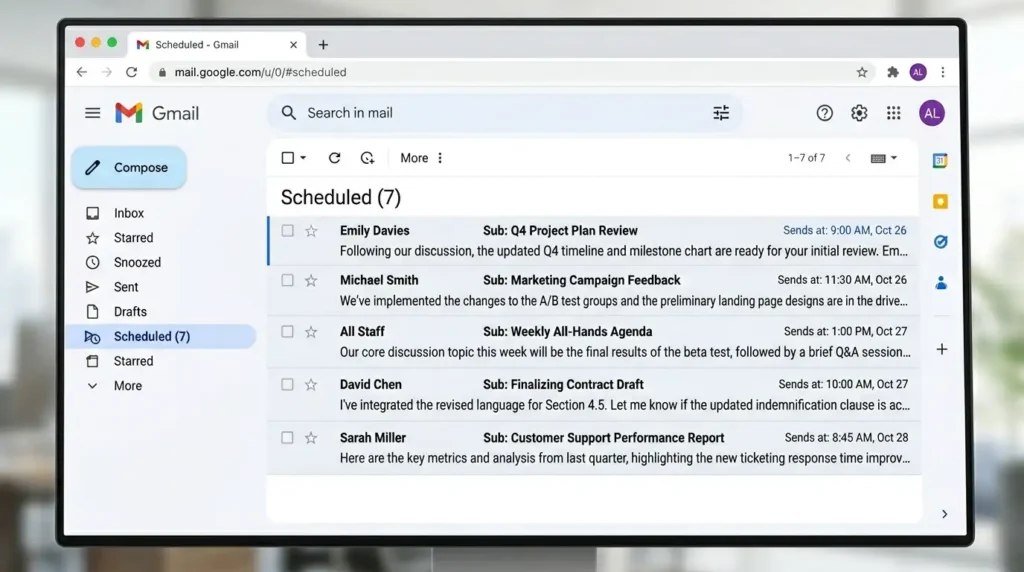
That’s it. The email disappears from your compose window and moves to a new folder called Scheduled on the left sidebar.
I usually double-check the Scheduled folder right after to make sure everything looks correct.
How to Schedule Emails on Mobile (Android & iPhone)
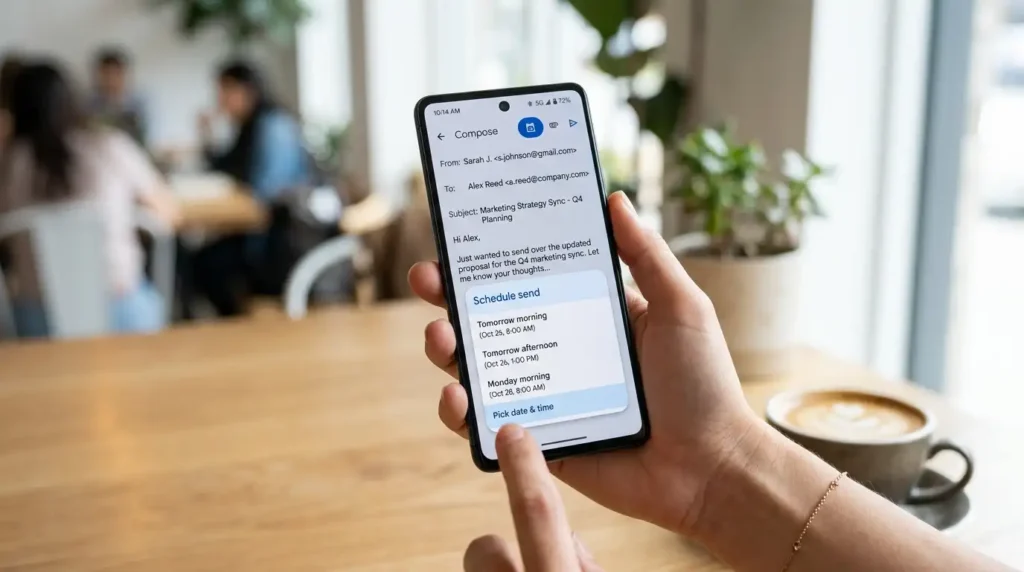
The process is almost identical on the Gmail app, which I use a lot when traveling.
- Open the Gmail app
- Tap the Compose button (bottom right on Android, floating button)
- Write your email
- Tap the three-dot menu (⋮) in the top right
- Tap Schedule send
- Pick a time or set a custom date & time
- Confirm
The email goes to the Scheduled section, which you can access from the left menu.
Real tip from experience: On mobile, the interface is a bit tighter, so I usually write longer emails on desktop and just schedule them from my phone when needed.
Managing & Editing Scheduled Emails
This is where a lot of people get confused.
- Go to the Scheduled folder on the left sidebar.
- Open the email you want to change.
- Click Cancel send at the top.
- The email will go back to Drafts so you can edit it.
- After editing, schedule it again the same way.
I’ve had to do this many times, once when a client changed meeting details at the last minute. Being able to pull back a scheduled email saved me from sending the wrong information.
Important note: You can schedule up to 100 emails at once. I’ve never hit that limit, but it’s good to know.
Real-Life Use Cases Where This Feature Shines
Here are situations where scheduling has genuinely helped me:
- Time zone differences: I work with clients in the US, Europe, and sometimes Australia. I write emails in the evening and schedule them for the morning.
- Follow-ups: After a meeting, I immediately draft a follow-up email but schedule it for 2-3 days later so it doesn’t feel too pushy.
- Newsletters & Announcements: I write my blog newsletter on Sunday afternoon and schedule it to go out Tuesday morning when my subscribers are most active.
- Personal touches: Birthday emails, anniversary wishes, or “thinking of you” messages. Write them when the emotion hits, and send them on the right day.
- Job applications: Scheduling a thank-you email right after an interview to arrive the next morning.
One funny mistake I made early on: I scheduled a very casual, emoji-filled email to a formal client for 9 AM. It went out perfectly, but the tone felt off for their corporate culture. Lesson learned — always double-check tone based on delivery time.
Pro Tips I’ve Picked Up Over the Years
- Use clear subjects even for scheduled emails. People decide whether to open based on the subject line.
- Check the recipient’s time zone. Gmail uses your local time for scheduling, so calculate accordingly.
- Combine with templates: I have a few Gmail templates (via Settings → See all settings → Advanced → Templates) for common emails, then schedule them.
- Don’t over-schedule everything. Some emails still need that personal, immediate touch.
- Test with yourself first: Send a test scheduled email to your other account to see exactly how it arrives.
Common Mistakes to Avoid
- Clicking Send instead of the arrow (I’ve done this more times than I’d like to admit).
- Forgetting to check the Scheduled folder before going on vacation.
- Scheduling too many emails far in advance; things change, and you might need to cancel several.
- Ignoring Gmail’s suggested times completely. Sometimes they’re surprisingly good for general follow-ups.
- Not realizing that scheduled emails still come from your account, the recipient won’t know it was scheduled unless you tell them.
What About Advanced Scheduling?
Gmail’s built-in tool is solid for most people, but if you need more power (recurring emails, better analytics, or sending based on opens), tools like Boomerang or Right Inbox exist. I tried Boomerang for a while but eventually went back to native Gmail for simplicity.
For most users, the free Schedule Send is more than enough.
FAQ
Q: Can I schedule emails in Gmail for free? Yes, completely free. No paid subscription needed.
Q: Will the email be sent if my computer is off? Yes. Once scheduled, Gmail sends it from its servers. Your device doesn’t need to be online.
Q: How far in advance can I schedule? You can schedule emails years ahead (up to 49 years, I think). I usually keep it within a few weeks max.
Q: Can recipients see that the email was scheduled? No, it looks like a normal email. There’s no “sent via scheduling” label.
Q: What happens if I schedule an email and then lose internet? Nothing — it’s already saved on Google’s servers.
Q: Is there a way to schedule replies to existing emails? Yes, the same process works when replying or forwarding.
Q: Does it work with Gmail workspaces/business accounts? Yes, it works the same on personal and Workspace accounts.
Disclaimer
This article is based on my personal experience using Gmail daily as of 2026. The interface might change slightly over time, so always check Gmail’s official help if something looks different. I’m not affiliated with Google. Features can vary depending on your account type and region.
Scheduling emails has genuinely made my work life less stressful. I can be thoughtful about timing without being chained to my inbox at specific hours.
If you start using this feature regularly, you’ll probably wonder how you ever lived without it, just like I did.
Have you tried scheduling emails yet? What’s the most useful way you’ve used it? Drop a comment below; I read them all.

Written by: Krunal,
Founder & Tech Writer at ToolsVila.online
I help people solve everyday tech problems with simple and practical guides. Over 6 years of hands-on experience with WordPress, Windows, Android & digital tools.