
How to Submit a Website to Google Search Console

A few months ago, I published around 15 articles on ToolsVila.online. After two weeks, I checked Google and realized almost none of my pages were showing up in search results. I was frustrated. That’s when I remembered I had never submitted my site to Google Search Console.
I quickly submitted it, and within 10 days, Google started indexing my pages. Traffic slowly started coming in. That experience taught me one important thing: No matter how good your content is, Google won’t know about your website unless you tell it.
Let me share exactly how I did it step by step, the way I wish someone had explained it to me when I started.
Why I Submit Every New Website to Google Search Console
Google Search Console (GSC) is like a direct communication channel between you and Google. It tells you which pages are indexed, which are not, if there are any errors, and even gives you ideas to improve your site.
Without it, you’re basically running your website blind.
Step-by-Step: How to Submit Your Website to Google Search Console
Step 1: Go to Google Search Console
- Open your browser and go to search.google.com/search-console
- Sign in with your Gmail account (use the same account you use for Google Analytics)
Step 2: Add Your Website (Property)
You have two options:
- Domain Property (Recommended) → toolsvila.online
- URL Prefix → https://toolsvila.online/
I always choose Domain Property because it covers all versions (www and non-www, http and https).
Click Add Property → Select Domain → Enter your domain name → Click Continue.
Step 3: Verify Ownership
Google will ask you to verify that you own the website. There are several methods:
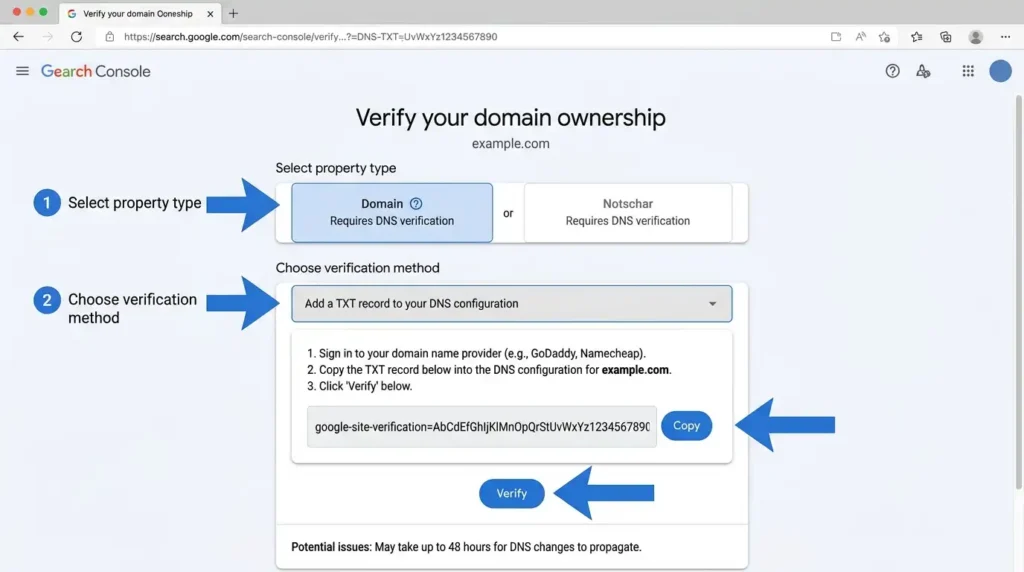
Best Method (DNS Verification):
- Go to your domain registrar (GoDaddy, Namecheap, Hostinger, etc.)
- Find DNS Records section
- Add a new TXT Record
- Copy the code Google gives you and paste it into the TXT value
- Save changes
- Come back to Google Search Console and click Verify
It usually takes 5-30 minutes to verify. Sometimes you may need to wait up to 1 hour.
Alternative Methods:
- HTML File Upload (easy but not permanent)
- HTML Meta Tag (good for WordPress)
- Google Analytics (if already connected)
I prefer DNS method because once verified, it stays verified even if you change themes or hosting.
Step 4: Submit Your Sitemap
After verification:
- On the left menu, click Sitemaps
- In “Add a new sitemap” box, type sitemap.xml
- Click Submit
If you’re using Yoast SEO or Rank Math, your sitemap is usually at yoursite.com/sitemap.xml
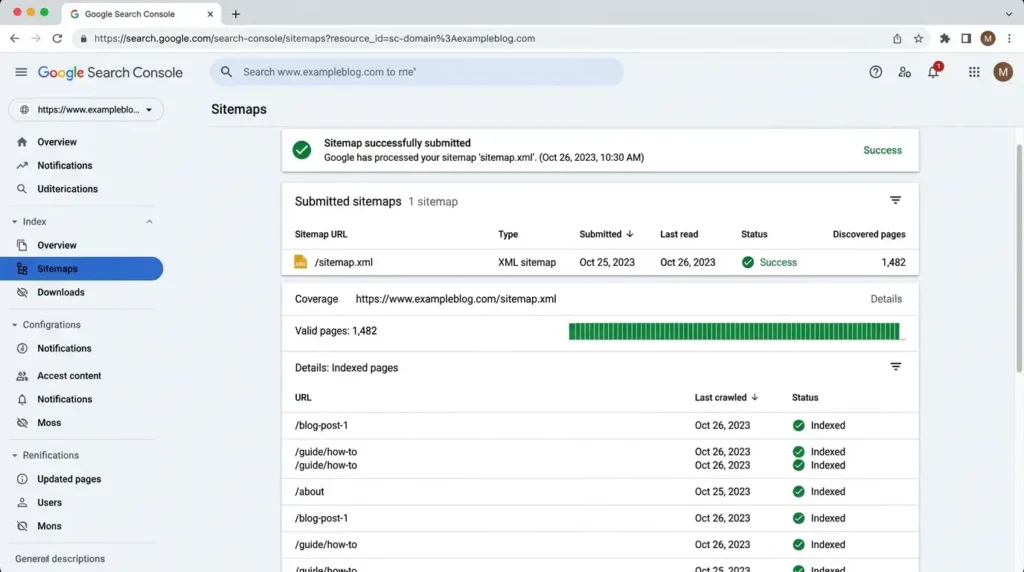
Step 5: Check Indexing Status
Go to Pages or Indexing section to see:
- How many pages are indexed
- Which pages have errors
- Mobile usability issues
My Real Experience
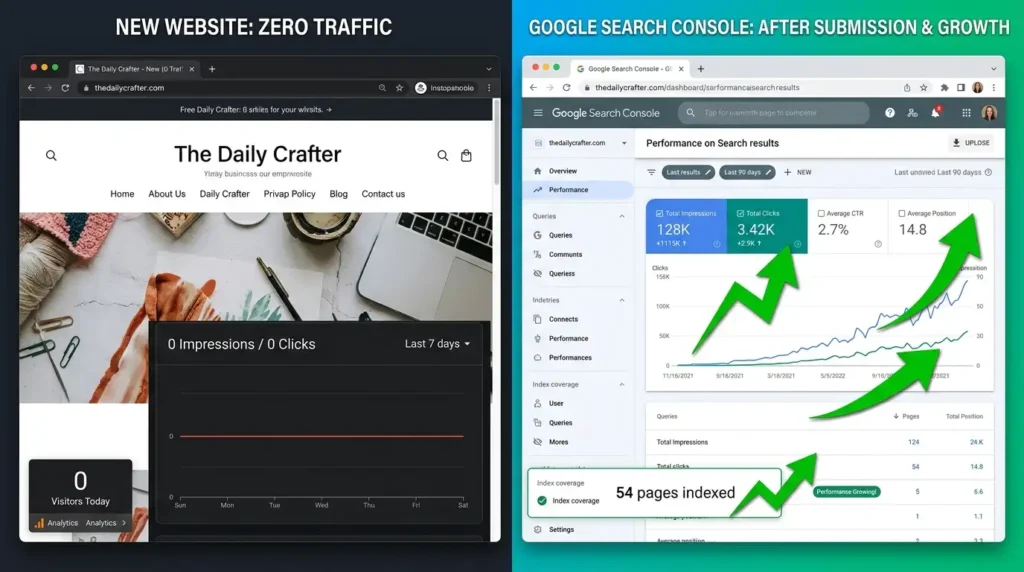
When I submitted ToolsVila.online, Google indexed 8 pages in the first week. After submitting the sitemap, it jumped to 22 pages in 15 days. I also found some technical errors (like duplicate meta descriptions) that I fixed immediately.
One mistake I made: I submitted the sitemap too early when the site had almost no content. Google crawled empty pages, and it took time to recover.
Common Mistakes Beginners Make
- Submitting URL prefix instead of Domain property
- Forgetting to submit the sitemap
- Not verifying properly (especially with DNS)
- Checking results after 1-2 days (Google needs time)
- Submitting the website before it’s ready (very few quality articles)
- Ignoring errors shown in Search Console
Pro Tips From My Experience
- Submit your website as soon as you have 8-10 quality articles
- Always submit the sitemap after publishing new posts
- Check Search Console at least once every 15 days
- Fix all errors shown under the “Pages” section
- Use the URL Inspection tool to request indexing for important new pages
FAQ
Q1. How long does it take for Google to index my website after submission? Usually 3 to 15 days. Sometimes it can take up to a month for new websites.
Q2. Do I need to submit my website every time I publish a new post? No. Just submit the sitemap again. Google will automatically find new pages.
Q3. Is Google Search Console free? Yes, completely free.
Q4. Should I use the Domain or URL Prefix property? Domain property is better and more complete.
Q5. What if verification fails? Try a different method (the HTML tag is usually easiest for WordPress).
Q6. Can I add multiple websites to one Search Console account? Yes, you can manage many websites under one Gmail account.
Q7. Does submitting to Search Console guarantee ranking? No. It only helps Google discover and understand your site. Good content and SEO still matter.
Look, submitting your website to Google Search Console is one of the most important first steps for any new blogger. I wish I had done it earlier.
It doesn’t take much time, but it makes a big difference in how quickly Google notices your hard work.
If you get stuck at any step, especially during verification or sitemap submission, just drop your problem in the comments. Tell me which step you’re stuck on, and I’ll help you fix it.
Disclaimer: The information provided on this website is for general guidance only. While we make every effort to keep the content accurate and up to date, we do not guarantee that all methods will work in every situation. Use the guides at your own risk. ToolsVila.online is not affiliated with Google or any other brand mentioned.

Written by: Krunal,
Founder & Tech Writer at ToolsVila.online
I help people solve everyday tech problems with simple and practical guides. Over 6 years of hands-on experience with WordPress, Windows, Android & digital tools.
All the best