
A few months back, I hit a wall with my photo collection. My phone was filling up fast; Google Photos had become my main cloud backup, but every time my laptop needed a clean install, or I wanted to edit shots locally in Lightroom, I was stuck manually downloading hundreds of gigabytes. It was a nightmare: hours of clicking, waiting for zips to extract, and realizing I’d missed some videos from last year’s trip. I learned the hard way that “cloud backup” doesn’t automatically mean “easy local copy.”
After messing around with half-baked solutions, scripts that broke, and one too many “where did that folder go?” moments, I finally nailed down reliable ways to get Google Photos backing up automatically to my PC. If you’re in the same boat, whether you’re a parent saving family memories, a photographer with a growing archive, or just someone who hates losing access when the internet flakes out, this guide is for you. I’ve tested these on Windows and a bit on Mac, with thousands of photos and videos.
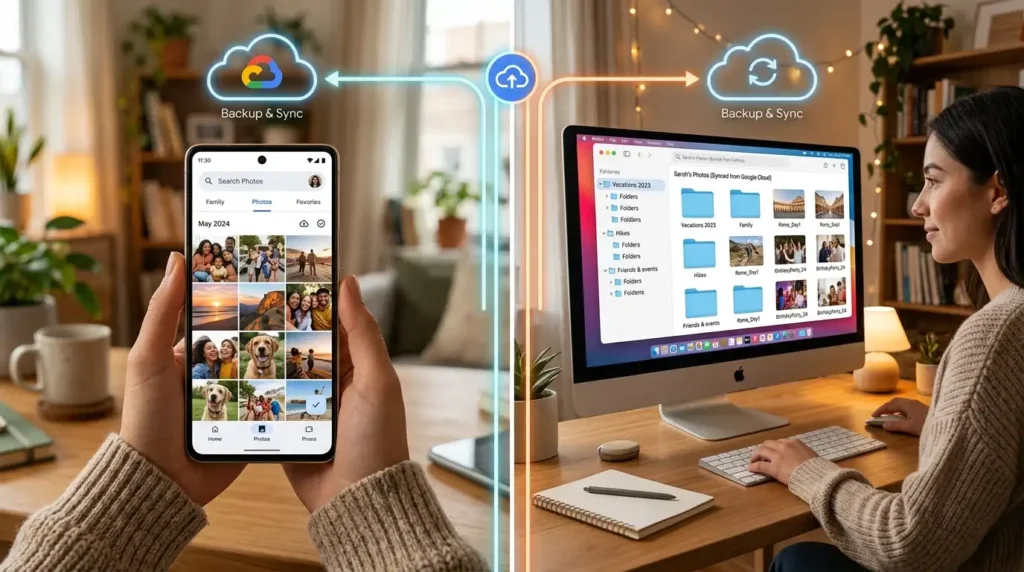
Why Automatic Backup Matters (And Why It’s Trickier Than It Sounds)
Google Photos is fantastic for storage and AI search, but pulling everything down to your computer isn’t as seamless as uploading from your phone. Google doesn’t offer a simple “mirror my entire library to my PC” button. Storage limits, duplicate files, metadata stripping, and slow downloads all get in the way.
In my case, I had over 200GB in Google Photos from years of Pixel shots, travel pics, and random scans. Manual downloads via the web interface worked once, but updating it weekly? No thanks. I tried Google Takeout repeatedly and ended up with massive zip files that took forever. Then I discovered better tools and workflows that run in the background. The relief was huge; now new photos sync without me lifting a finger (mostly).
Option 1: The Official-ish Way with Google Drive as a Bridge
One of the simplest starting points is routing through Google Drive. It’s not perfect, but it works for many.
First, use a tool like MultCloud or similar cloud sync services to mirror Google Photos to a folder in Google Drive. Then install Google Drive for Desktop and enable “Mirror files” so your Drive contents stay local on your PC.
I tried this early on. It got most of my library over, but videos sometimes lagged, and organizing by date required extra steps. Still, for basic needs, it’s free and relatively hands-off once set up. Schedule syncs if the service allows, and let Drive handle the local mirroring.
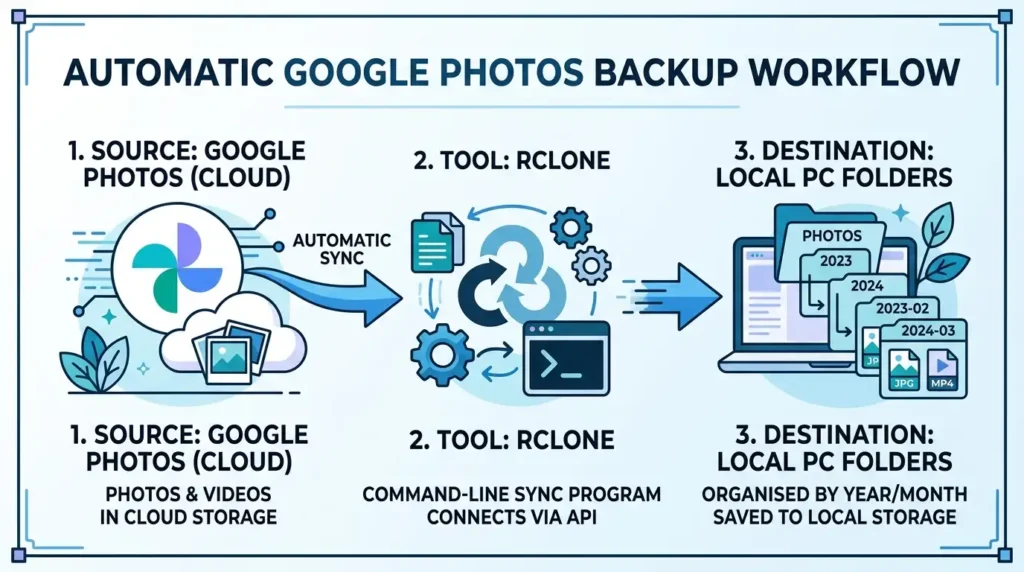
Quick steps I followed:
- Sign up for a cloud sync tool that supports Google Photos and Drive.
- Connect both accounts.
- Set up a one-way sync from Photos (all library or specific albums) to a dedicated Drive folder.
- Install Google Drive for Desktop from the official site.
- In preferences, choose “Mirror files” for that folder.
- Let it run; new uploads to Photos should eventually flow through.
It took a weekend for the initial sync on my connection, but after that, it stayed mostly up to date. Lesson learned: Don’t expect real-time; check it weekly at first.
Option 2: Google Takeout on a Schedule (The Reliable Bulk Method)
For a full, high-quality local copy, Google Takeout is still king, even if it’s not fully automatic. I set it up to export every couple of months.
Go to takeout.google.com, select only Google Photos, choose your options (original quality, all data, large archive size), and have it email you links. Download to an external drive or dedicated folder on your PC, then extract.
To make it more automatic:
- Set a recurring reminder or use a script/browser extension to trigger it.
- Use tools like Restic or even Windows Backup to deduplicate and version the extracted files.
My early mistake: Downloading everything every time without filters. It ate bandwidth and created duplicates. Now I archive incrementally and use folder structures like “by-year” for easier management. Preserve timestamps and GPS data beautifully, which many downloads don’t.
Option 3: rclone – My Go-To for True Automation
This is where it got really good for me. rclone is a command-line tool that handles Google Photos directly and can run on schedules. It’s free, powerful, and works on Windows, Mac, and Linux.
I wish I’d found it sooner instead of fighting with web downloads. It let me pull media organized by date without duplicates (mostly).
Setup steps (what worked for me on Windows):
- Download rclone from the official site and extract it.
- Open a command prompt in the folder and run rclone config.
- Create a new remote, choose Google Photos, and follow the auth steps in your browser.
- Test with a small command: rclone ls photosremote: media/by-year (replace “photosremote” with your remote name).
For backup:
- Use something like rclone copy photosremote: media/by-year C:\PhotosBackup\ -progress -update to copy new/changed files.
- For automation, create a batch file and use Task Scheduler to run it daily or weekly.
I added flags for speed limits and retries because my connection isn’t the best. One unexpected result: It downloaded some files multiple times initially until I refined the filters. But once tuned, it saved me tons of time. Great for preserving original quality and metadata.
On Linux or with cron, it’s even smoother. Pro tip: Back up your rclone config file; it’s got your auth tokens.
Option 4: Desktop Apps and Third-Party Tools
Google offers a Photos desktop uploader, but that’s mainly for pushing from PC to cloud. For pulling down, check third-party options like Wondershare UBackit for scheduled local backups (once you have files downloaded) or dedicated photo managers that integrate with Google.
I tested a couple of paid sync apps. They handle resumes well during interruptions, which is huge for large libraries. Free alternatives sometimes throttled or missed albums.
For Mac users, similar tools or Hazel rules combined with scripts can help organize incoming files.
Real-Life Use Cases That Made This Worth It
- Family archiving: My wife and I take tons of kid pics. Automatic flow to our shared PC folder means we can print albums or run local slideshows without relying on WiFi.
- Photography workflow: I shoot RAW on my camera, back up to phone/Google, then pull to desktop for editing. No more dual management.
- Travel safety: Before trips, I ensure the latest cloud pics are local in case my phone gets lost.
One funny (now) mistake: I once synced without checking storage. Filled my SSD and had to shuffle to an external drive mid-process. Always monitor space!
Common Mistakes to Avoid

- Ignoring duplicates: Google Photos has smart deduping in the cloud, but local copies can balloon if you’re not careful. Use tools with checksums.
- Forgetting metadata: Some download methods strip dates or locations. Stick to original quality exports.
- Assuming real-time: Most solutions are near-real-time or scheduled. Test small batches first.
- Security: When using third-party tools, review permissions. I stick to open-source like rclone when possible.
- Storage management: Compress old archives or use external HDDs. Cloud is convenient, but local is your safety net.
Also, watch Google’s storage, 15GB free shared across services, fills fast with photos.
Tips for Smoother Sailing
- Organize in Google Photos first (albums, favorites) to make selective syncs easier.
- Use fast WiFi or Ethernet for initial big pulls.
- Combine methods: rclone for ongoing, Takeout for full archives.
- Check file integrity occasionally with hashes if you’re paranoid like me.
- For videos, note they take longer; prioritize photos if bandwidth is limited.
After implementing this, my setup runs quietly in the background. I sleep better knowing my memories aren’t locked in the cloud only.
FAQ
1. Can Google Photos automatically sync everything to my PC as it does from phone to cloud? Not natively in a simple toggle. You need workarounds like rclone, Takeout schedules, or Drive bridging. I wish it were built-in, but these get the job done.
2. Is rclone safe to use with my Google account? Yes, if you follow the official setup, it uses OAuth, and you control permissions. I’ve used it for years without issues, but always review what you authorize.
3. How long does the initial backup take? Depends on your library size and internet. My 200GB took a couple of days spread out. Incremental updates are much faster afterward.
4. Will this preserve original quality and metadata? Takeout and rclone do, too. Avoid compressed “storage saver” downloads if quality matters.
5. What about duplicates when syncing? rclone’s -update or dedup tools help. Manually review folders periodically.
6. Can I do this on Mac? Absolutely. rclone works great, and Google Drive for desktop is solid there too.
7. Are there free tools only? Yes, rclone, Takeout, and basic Drive sync are free. Paid tools add polish and easier GUIs.
8. What if I have limited storage on my PC? Use external drives, selective album syncs, or incremental tools that only grab new files.
9. Does this work for shared albums or partner sharing? It depends on the method. Takeout usually gets your own library; check specifics for shared content.
10. How often should I run backups? Weekly for active use, or monthly for lighter needs. Set it and forget with automation.
11. What happens if Google changes its API? Tools like rclone update, but have a Takeout plan as a backup. Diversify your storage.
12. Can I automate it fully hands-free? Close enough with Task Scheduler/cron + rclone or similar. No perfect zero-effort solution yet.
Disclaimer
This article is based on my personal experience and testing as of 2026. Methods, tools, and Google features can change over time. Always back up important data in multiple places, verify downloads, and review terms of service for any third-party apps. I’m not affiliated with any tools mentioned, and this isn’t professional tech support. Double-check steps for your setup and proceed at your own risk. Your photos are precious; stay safe out there.

Written by: Krunal,
Founder & Tech Writer at ToolsVila.online
I help people solve everyday tech problems with simple and practical guides. Over 6 years of hands-on experience with WordPress, Windows, Android & digital tools.