
How to Use Google Sheets to Auto-Calculate Monthly Budget (My Real-Life System That Actually Works)
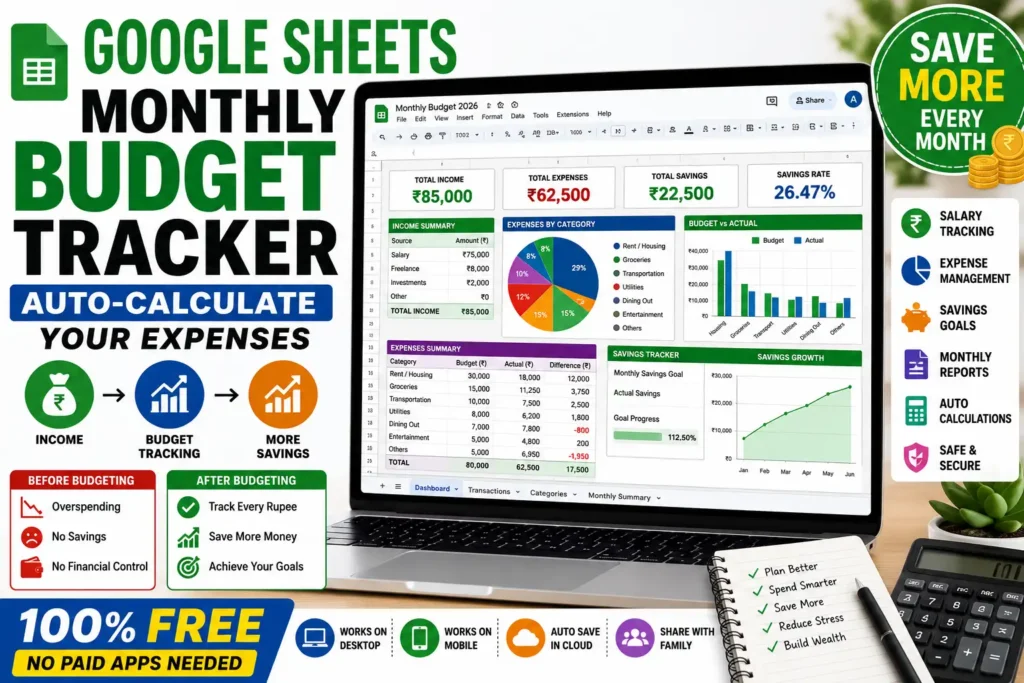
I still remember the month I blew through my salary in just three weeks. Rent, groceries, random Amazon purchases, and that one “harmless” dinner with friends — everything added up way faster than I expected. I was tired of guessing where my money went and constantly stressing at the end of the month.
That’s when I turned to Google Sheets. Not some fancy paid app, just the free tool I already had. Three years later, I’m still using it. My budget now auto-calculates everything, shows me where I’m overspending in real time, and even helps me save consistently. No more surprise bank statements.
If you’re tired of manual tracking or expensive budgeting apps, this guide is for you. I’ll walk you through exactly how I built my system — the mistakes I made, the formulas that save time, and the tweaks that made it actually useful in real life.
Why Google Sheets Beat Every Other Budget Tool for Me
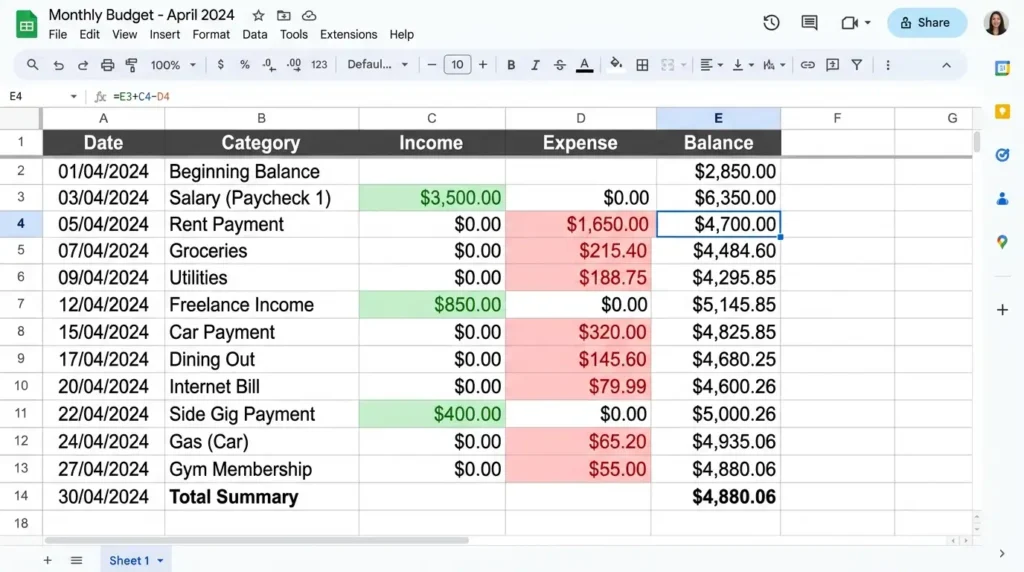
I tried several budgeting apps, some free, some paid. Most felt too rigid or pushed me to enter data every single day. Google Sheets is different. It’s flexible, works offline once loaded, syncs across my laptop and phone, and best of all, it’s free.
Plus, once you set it up, most things calculate automatically. That’s the magic.
My First Attempt (and the Mistakes I Made)
When I started, I created a simple list of expenses. No categories, no formulas, just random rows. By mid-month, the sheet was a mess, and I had no idea how much I had left.
Lesson learned: Structure matters. Spend time on the foundation instead of rushing into data entry.
Here’s the system I use now.
Step 1: Create Your Monthly Budget Template
- Open Google Sheets (sheets.google.com) and click Blank spreadsheet.
- Name it something like “Monthly Budget 2026”.
- Create these main tabs at the bottom:
- Dashboard
- Transactions
- Categories
- Monthly Summary
I keep everything in one file with multiple sheets. Makes it easy to reference.
Pro Tip: Make a copy of last month’s sheet as a template so you don’t start from scratch every time.
Step 2: Set Up Your Income and Expense Categories
In the Categories tab, list all your regular income and spending areas.
Income examples:
- Salary
- Freelance
- Investments
- Other
Expense categories:
- Rent/Housing
- Utilities
- Groceries
- Transportation
- Dining Out
- Entertainment
- Subscriptions
- Shopping
- Health
- Savings/Investments
I color-code them green for income, red/orange for expenses. Helps me scan.
Step 3: Build the Transactions Sheet (Where the Magic Happens)
This is where you log daily spending.
Columns I use:
- Date
- Description
- Category (dropdown list)
- Income
- Expense
- Running Balance
How to Create Dropdown for Categories
- Select the Category column.
- Go to Data > Data validation.
- Under Criteria, choose List from a range.
- Point it to your Categories sheet.
This prevents spelling mistakes and makes everything consistent.
Step 4: The Formulas That Auto-Calculate Everything
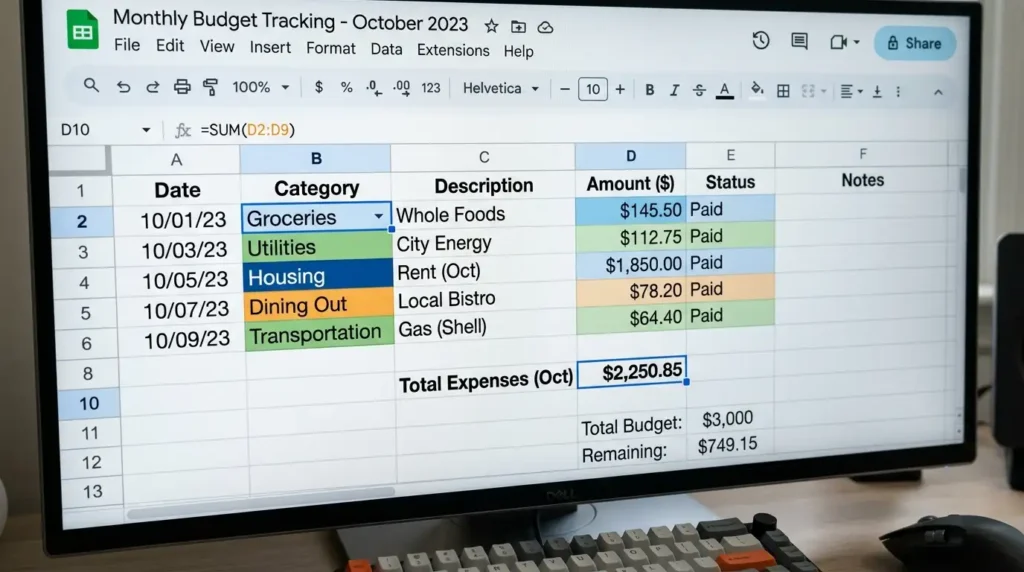
This is the part that changed everything for me.
Total Income
text
=SUMIF(Categories!A:A, "Income", Transactions!D:D)(Adjust ranges according to your sheet)
Total Expenses
text
=SUM(Transactions!E:E)Current Balance
text
=Total Income - Total ExpensesRunning Balance (in each row)
In the first row of the Running Balance column:
text
=D2 - E2Then drag down. For subsequent rows:
text
=F2 + D3 - E3Google Sheets is smart — it usually fills the pattern automatically.
Monthly Category-wise Spending
I use a pivot table for this, but you can also use SUMIF formulas.
Example for Groceries total:
text
=SUMIF(Transactions!C:C, "Groceries", Transactions!E:E)I have a whole section that auto-populates every category total.
Step 5: Build a Clean Dashboard
My dashboard has:
- Big numbers for Total Income, Total Expenses, and Savings Rate
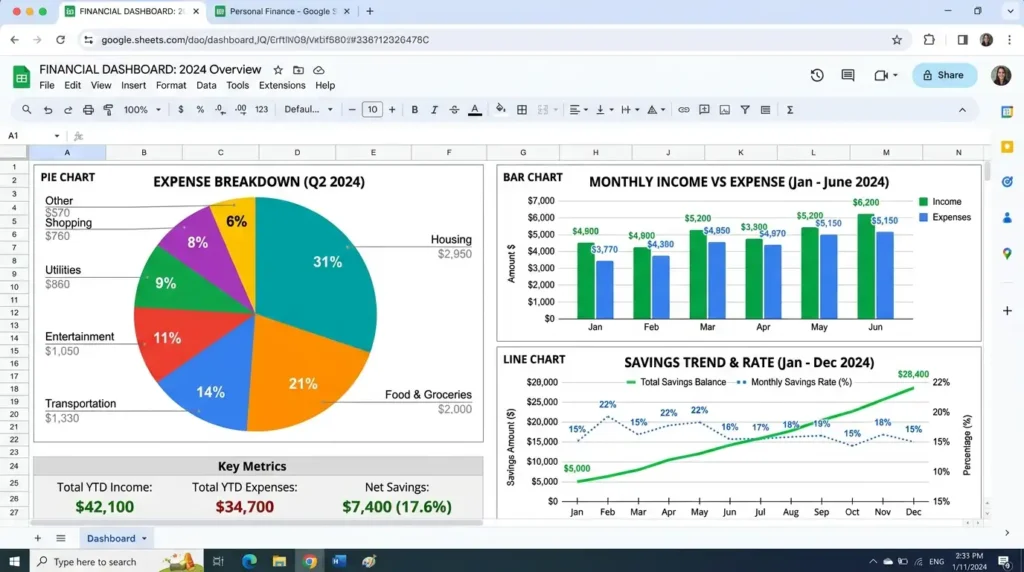
- Pie chart for expense breakdown
- Bar chart comparing budgeted vs actual
- Progress bars toward savings goals
To create charts:
- Select your data
- Insert > Chart
- Customize in the Chart editor
I update the dashboard once a week, and it gives me a clear picture.
Real-Life Example from My Sheet
Last month my salary was ₹85,000. Groceries came to ₹18,500 (higher than usual because of guests). Dining out was ₹12,000 — I realized I was eating out too much. I adjusted the next month and brought it down to ₹7,500.
The sheet showed me the problem immediately. No guessing.
Tracking Multiple Months Easily
I duplicate the Transactions sheet every month or use one big sheet with a Month column and filter views.
Filter views are lifesavers. I can look at just March data without messing up the whole sheet.
Mobile Access Budget on the Go
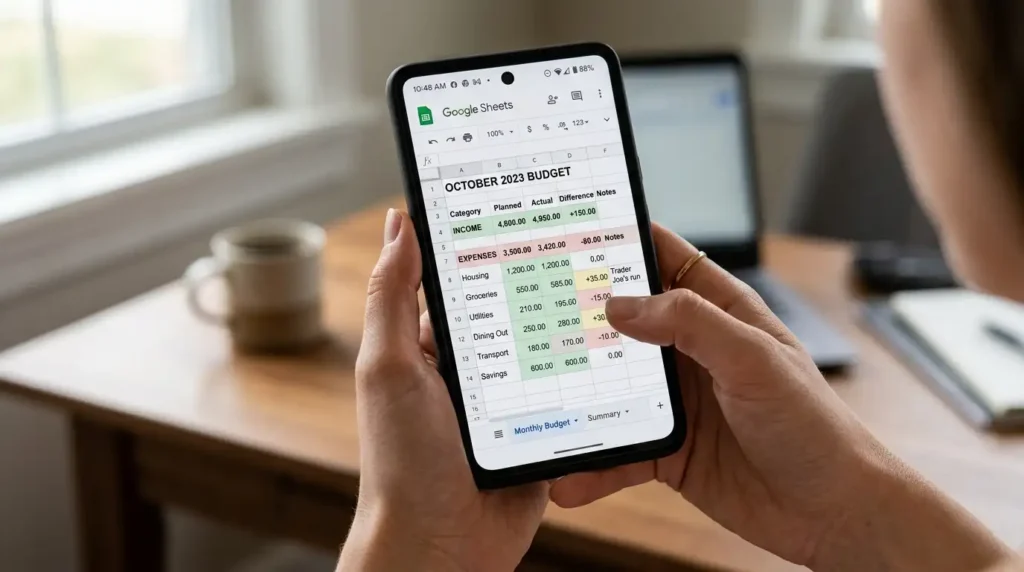
I use the Google Sheets app on my Android phone. Whenever I pay for something, I quickly add it. Takes 15 seconds.
The app also shows charts, so I can check my spending while waiting in line.
Advanced Tips I Learned Over Time
- Conditional Formatting: Make expenses over a certain amount turn red automatically.
- Budget vs Actual: Add a Budgeted column and use formulas to show variance.
- Savings Goals: Separate tracker for emergency fund, vacation, etc.
- Shared Budget: My wife and I both edit the same sheet. Works perfectly.
- Import from Bank: Some banks allow CSV export — I import and use VLOOKUP to categorize.
Common Mistakes to Avoid
- Not categorizing consistently — “Food” vs “Groceries” will mess up your totals.
- Forgetting one-time expenses like insurance or gifts.
- Overly complicated sheet — I started simple and added features gradually.
- Not reviewing regularly — Check your sheet at least weekly.
- Ignoring small purchases — Those coffees add up.
I made all these mistakes. Don’t worry if you do too — just fix and move on.
How Much Time Does This Take?
Setup: 2-3 hours the first time. Daily logging: 2-3 minutes. Weekly review: 10-15 minutes.
Totally worth it.
Visualizing Your Spending
Charts made the biggest difference for me. Seeing that 28% of my money went to eating out was a wake-up call. Now I cook more and save that money.
Bonus: Free Template Idea
You can search for “monthly budget template Google Sheets” and find many ready ones, but building your own teaches you so much more. Start simple and customize.
Final Thoughts
Google Sheets won’t magically fix your spending habits, but it gives you the clarity and data you need to make better decisions. I’ve been using this system for years now, and my savings have steadily grown.
The best part? It’s completely free and yours forever. No subscriptions, no data lock-in.
Start small this month. Just track your expenses for 30 days and see what happens. You might be surprised.
FAQ
Q1: Do I need to know advanced formulas? No. Basic SUM and SUMIF are enough to start. You can learn more as you go.
Q2: Can multiple people use the same budget sheet? Yes. Just share it with edit access. Works great for couples or families.
Q3: What if I miss entering some expenses? It happens. I do a quick bank statement review at month-end to catch missed entries.
Q4: Is Google Sheets safe for financial data? I only put the necessary info. Enable 2-factor authentication on your Google account for better security.
Q5: Can I use this for yearly planning too? Absolutely. I have a separate yearly summary sheet that pulls data from monthly tabs.
Disclaimer
This article is based on my personal experience using Google Sheets for budgeting. Results may vary depending on individual financial situations. This is not professional financial advice. Always consult a certified financial advisor for personalized guidance. Google Sheets is a product of Google LLC.

Written by: Krunal,
Founder & Tech Writer at ToolsVila.online
I help people solve everyday tech problems with simple and practical guides. Over 6 years of hands-on experience with WordPress, Windows, Android & digital tools.