
A few days ago, I was in the middle of editing some travel photos on my Pixel when the dreaded “Storage almost full” notification popped up. I had just 2GB left on a 128GB phone. My instinct was to start uninstalling stuff, but I didn’t want to lose any of my go-to apps like WhatsApp, Instagram, or my banking ones. I’d been there before, rushing to delete an app only to reinstall it later and waste time re-logging in. So I dug in and found a bunch of ways to claw back space without touching my installed apps. Turns out, you can easily free up several gigabytes if you know where to look.
I’ve tested these on my daily driver Pixel and a couple of Samsung phones my family uses. Some tricks gave me quick wins (like 4-5 GB overnight), while others needed a bit more effort but paid off long-term. No magic apps or risky hacks—just solid, everyday methods that actually work.
Why Your Storage Fills Up Even If You Don’t Download Much
Android phones eat storage in sneaky ways. Apps build up caches for faster loading, think Instagram keeping thumbnails or Chrome storing website data. WhatsApp hoards media in its own folders. Downloads pile up from emails, browsers, and updates. Photos and videos in original quality take huge chunks. Even system files and temporary data add up.
On my phone, clearing out WhatsApp media alone recovered over 3GB one time. I didn’t realize how much junk was hiding until I started poking around. If you’re hitting this issue regularly, you’re not alone. Modern apps are data-hungry, and base storage on budget or mid-range phones hasn’t kept up.
Start Here: Check What’s Actually Taking Space
Before doing anything, see the culprits. Go to Settings > Storage (the path might say “Device care > Storage” on Samsung). You’ll see a breakdown: Apps, Images, Videos, Audio, Downloads, etc.
This screen is gold. On my Pixel, it showed that “Other” and cached data were massive. Tap into categories to drill down. Don’t rush to delete; note the big offenders first.
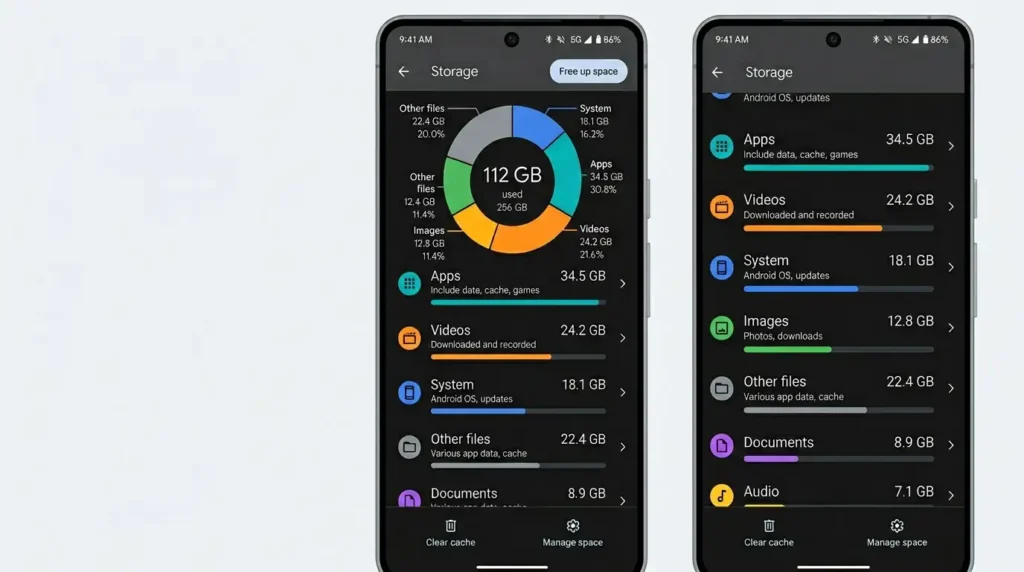
Pro tip from experience: Do this weekly. It takes two minutes and prevents panic later.
Clear App Caches (The Easiest Gigabytes)
This is my go-to first step. Caches are temporary files apps use to speed things up. Clearing them doesn’t delete your accounts, photos, or settings in most cases.
Here’s how:
- Open Settings > Apps.
- Sort by size or tap See all apps.
- Pick a heavy one like Instagram, YouTube, or Chrome.
- Tap Storage & cache (or just Storage).
- Hit Clear cache.
I once cleared the cache for a handful of social apps and instantly got back almost 2 GB.
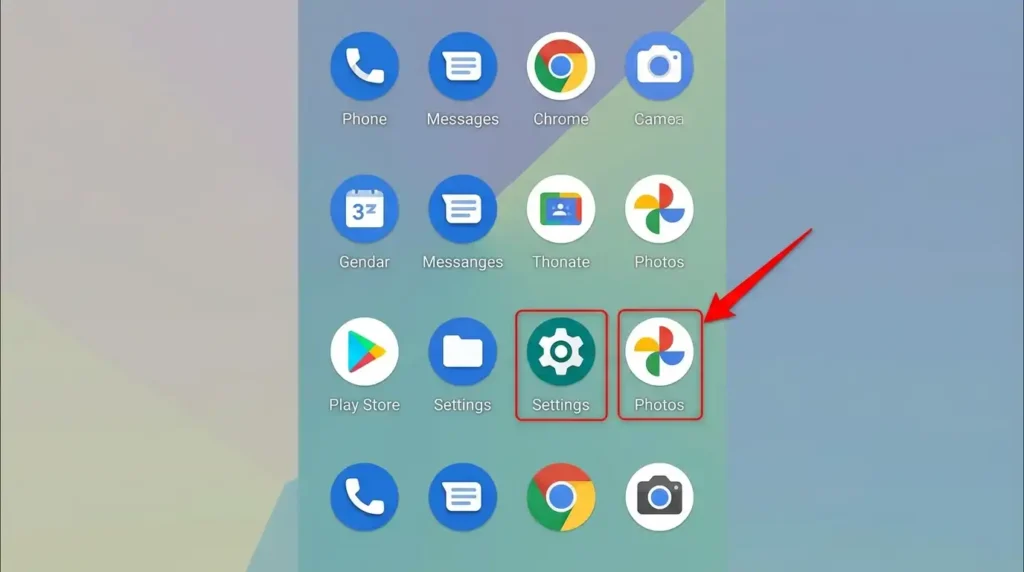
Safe and reversible apps will rebuild what they need. For a bulk option on stock Android/Pixel: In Storage settings, look for “Free up space” or “Cached data” and clear it. On some devices, there’s a one-tap “Clean” in the storage menu.
Lesson learned: Don’t clear “data” unless you’re okay resetting the app (it logs you out and wipes preferences). I did that with a game once by accident and lost progress. Cache only is the way.
Use Files by Google for Smart Cleanup
Google’s own Files by Google app is fantastic and lightweight. Download it if it’s not pre-installed (most phones have something similar).
Open it and go to the Clean tab. It suggests:
- Old screenshots and blurry photos.
- Duplicate files.
- Large files you haven’t opened recently.
- Junk from WhatsApp, Telegram, etc.
- Unused APKs.
I love how it categorizes WhatsApp media. You can browse sent/received photos and videos without opening the app. One cleanup session on my phone removed 1.8GB of old memes and low-quality clips I forgot about.
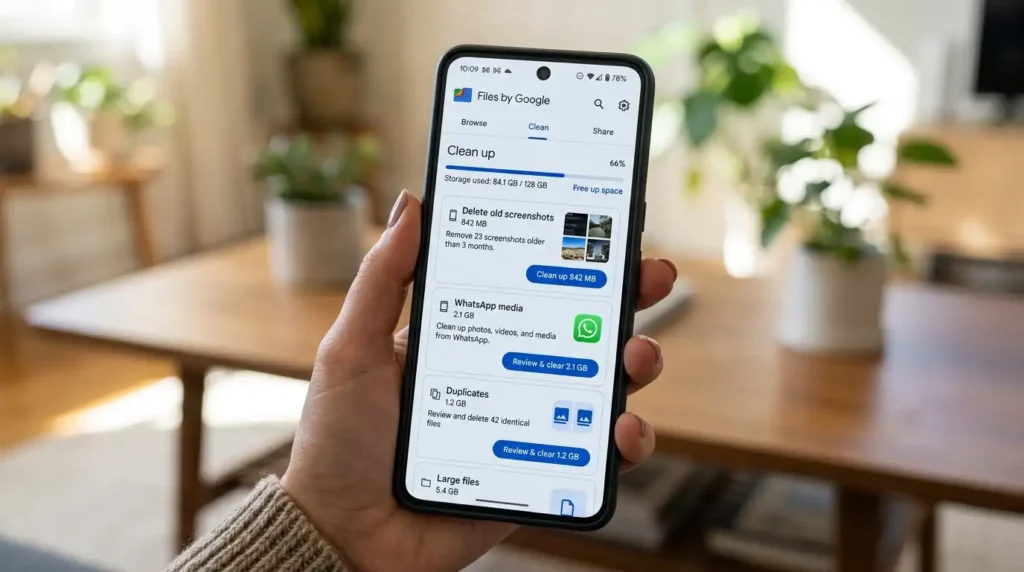
It also has a “Safe folder” for private stuff and shows SD card usage if you have one.
Manage Media Without Losing Memories
Photos and videos are storage killers. Don’t delete them—offload smartly.
- Google Photos: Back up to the cloud (use Wi-Fi only to save data). Then enable Manage device storage” in settings to remove originals after backup. I set mine to free up when storage is low.
- Compress: In Google Photos, edit images or use tools like image compressor apps for batches.
- Move to SD card: If your phone supports it (many mid-range ones do), insert a microSD, format it as portable storage, and move folders via the Files app.
On my older Samsung, moving the DCIM folder to the SD freed internal space dramatically. Just remember to eject safely.
For WhatsApp specifically: Go to WhatsApp > Settings > Storage and Data > Manage Storage. Sort by size and delete old chats’ media. Huge win.
Move Files to Computer or Cloud
Plug your phone into a PC with a USB. Copy over big folders (Downloads, Documents, Movies) and delete from phone. I do this monthly with family videos, back them up, and clears 5-10GB easy.
Cloud options:
- Google Drive or OneDrive for docs.
- Dropbox for quick shares.
- Photos to Google Photos (with Google One if you need more space).
I keep originals on my NAS at home now, but the cloud works if you have good internet.
Other Handy Tricks I’ve Used
- Downloads folder: Always check this. I found old PDFs, installers, and zip files eating space.
- Uninstall updates for bloatware: Go to Settings > Apps > select system apps like some carrier junk > uninstall updates. Saves a bit and reverts to a lighter version.
- Auto-archive in newer Android: On Android 15+, there’s app archiving that shrinks unused apps while keeping data. Enable it in Play Store settings. Great for seasonal apps.
- Smart Storage: In storage settings, turn on options to auto-delete backed-up photos or old files.
- Browser data: Clear Chrome cache and downloads regularly.
- Podcasts/Music: Apps like Spotify let you download offline, but review and remove them.
If you have an SD card, use it for media, not apps (many apps don’t support moving fully anymore due to performance).
Common Mistakes to Avoid
I messed up a few times, so you don’t have to.
- Clearing data instead of cache: Lost login on a work app. Painful.
- Moving everything to SD without checking compatibility: Some phones slow down, or apps crash if critical files are on external.
- Ignoring “Other” files: These include system caches and app leftovers. Use the Files app to hunt them.
- Forgetting to empty Trash in Photos or Files: Deleted items sit for 30 days.
- Relying only on cleaner apps: Some third-party ones are bloated or push ads. Stick to Google’s Files or built-in tools.
- Not backing up first: Always back up important stuff before big cleanups.
Also, avoid a factory reset as a “solution” that’s overkill, and you’ll spend hours setting up again.
Real-Life Use Cases That Worked for Friends and Me
My sister has a budget Samsung with 64 GB. She was constantly full from family group chats. We used Files by Google to clean WhatsApp (4GB gone) and moved photos to SD. The phone felt snappier.
On my Pixel, combining cache clears, Google Photos backup, and manual downloads purge keeps me around 20-30 GB free consistently.
One friend with a gaming phone cleared 8GB just from cached game data and old recordings. No app deletions needed.
Make It a Habit
Set a reminder every couple of weeks. Five minutes in the Settings or Files app keeps things smooth. Your phone runs better with less lag when storage isn’t crammed.
These steps have saved me from buying a new phone or constantly juggling apps. Give them a shot next time that notification hits. You’ll wonder why you didn’t do it sooner.
FAQ
1. Does clearing the cache delete my app data or logins? No, caches are just temporary files. Your saved info stays put. Clear data only if you want a fresh start.
2. Is Files by Google safe to use? Yes, it’s made by Google, lightweight, and has no ads in the main functions. Widely recommended.
3. Can I move all apps to the SD card? Not really anymore. Some older phones allow partial moves, but most modern ones keep apps on internal storage for speed. Focus on the media instead.
4. How much space can I realistically free up? Depends on your usage, but 3-10 GB is common with cache, media, and downloads. Heavy users see more.
5. What about Android’s Smart Storage? It automatically removes backed-up photos and videos when space is low. Turn it on in storage settings for hands-off help.
6. Will these methods slow down my phone? No. Clearing junk often makes it faster. Apps rebuild caches as needed.
7. Should I use third-party cleaner apps? Stick to built-in or Files by Google. Many others are unnecessary or risky.
8. How do I handle large WhatsApp videos? In WhatsApp storage settings, delete by size or date. Back up important ones to the cloud first.
9. Does this work on Samsung, Xiaomi, OnePlus, etc.? Yes, core steps are similar. Samsung has Device Care; others vary slightly in menus, but concepts match.
10. What if I still run out after trying everything? Consider a phone with more storage next time, or use the cloud more aggressively. Check for large hidden system files via the Files app.
11. Can I archive apps on older Androids? Auto-archive is newer (Android 15+), but you can manually offload data or use lite app versions.
12. Is it safe to connect to the PC for file transfer? Yes, use USB file transfer mode. Just scan for malware on your PC if concerned.
Disclaimer
This article is based on my personal experience and general Android practices as of 2026. Steps may vary slightly by device model and Android version. Always back up important data before making changes. I’m not affiliated with Google or any app mentioned. Results depend on your usage. If you’re unsure about any step, consult your device’s official support or a professional. No guarantees on exact space freed, as every phone is different.

Written by: Krunal,
Founder & Tech Writer at ToolsVila.online
I help people solve everyday tech problems with simple and practical guides. Over 6 years of hands-on experience with WordPress, Windows, Android & digital tools.