
How to Add Google Analytics to WordPress (No Plugin Needed)

A few months ago, I launched a new blog and was super excited to see how many people were visiting. But after two weeks, I had no idea whether my articles were getting any traffic or not. I installed a popular analytics plugin, and within days, my site became slower. That’s when I decided to remove all extra plugins and add Google Analytics manually.
Since then, I’ve been running Google Analytics on my sites without any plugin for over a year now. My website loads faster, and I get clean, accurate data. Let me show you exactly how I did it step by step.
Why I Stopped Using Plugins for Google Analytics
Most beginners install a plugin like MonsterInsights or ExactMetrics. While they’re easy, they add extra code, slow down your site, and sometimes create conflicts.
After testing on my own site (ToolsVila.online), I noticed a clear improvement in loading speed after removing the plugin and adding the code manually. If you care about performance and want clean data, this method is much better.
Method 1: Adding Google Analytics Using Google Tag Manager (Recommended)
This is the method I personally use and recommend in 2026.
Step 1: Create a Google Analytics Account
- Go to analytics.google.com
- Sign in with your Gmail account
- Click Start measuring → Create a new property
- Enter your website name and URL
- Choose your industry and time zone
- Click Create
After creating the property, Google will give you a Measurement ID (looks like G-XXXXXXXXXX).
Step 2: Set up Google Tag Manager (GTM)
- Go to tagmanager.google.com
- Create a new account and container for your website
- Accept the terms
- Copy the GTM code (two parts: Head and Body)
Step 3: Add GTM Code to Your WordPress Site
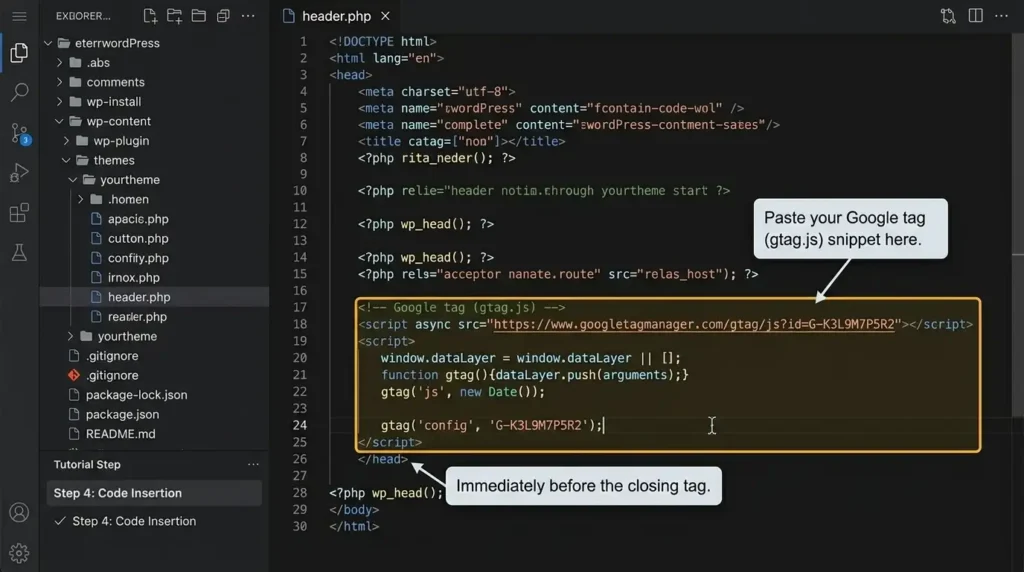
There are two easy ways:
Way A: Using Header & Footer Scripts (Easiest)
- Install the free plugin “Insert Headers and Footers” (only this one plugin)
- Paste the Head code in the Header section
- Paste the Body code in the Body section
- Save changes
Way B: Without Any Plugin (Fully Manual)
- Go to Appearance → Theme File Editor
- Open header.php file
- Paste the Head code just before </head> tag
- Open footer.php file
- Paste the Body code just after <body> tag
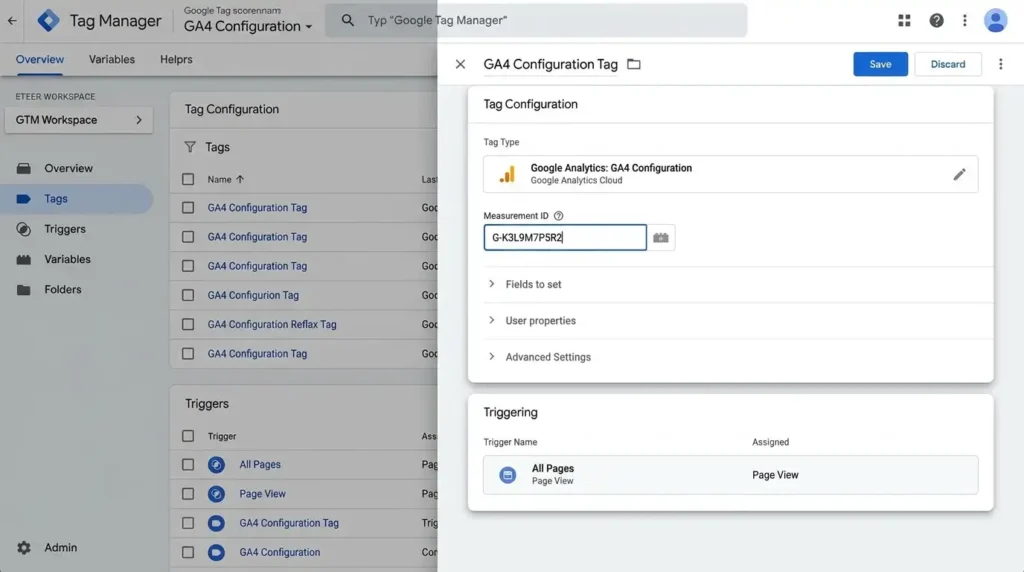
Step 4: Add Google Analytics Tag in GTM
- Go back to Google Tag Manager
- Click Add a new tag
- Choose tag type → Google Analytics: GA4 Event
- Enter your Measurement ID
- Set Trigger to All Pages
- Save and Submit
Wait for 24-48 hours for data to start appearing.
Real Experience From My Site
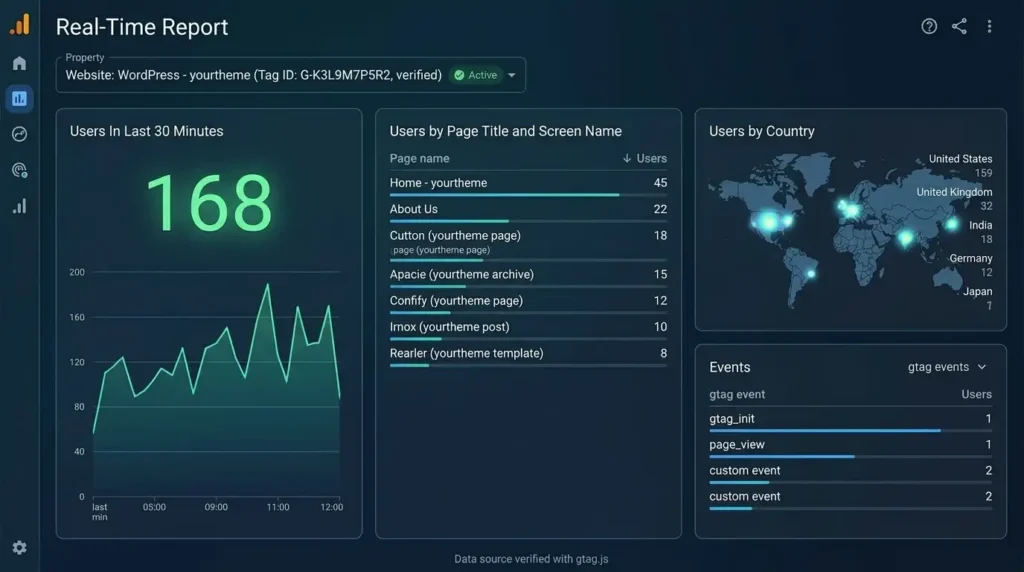
When I added Google Analytics manually on ToolsVila.online, I could clearly see which articles were getting more traffic, from which cities, and how long people were staying. The data was much cleaner compared to plugin-based tracking.
One important lesson I learned: Never add the code in the wrong place. I once pasted it in the footer only, and it didn’t track properly for two days.
Common Mistakes Beginners Make
- Pasting the code in the wrong section (header vs footer)
- Forgetting to submit changes in Google Tag Manager
- Using both the plugin and manual code together creates duplicate tracking.
- Not verifying the setup using Google Tag Assistant
- Checking analytics after 10 minutes (data takes time to appear)
I made the duplicate tracking mistake once, and my bounce rate looked completely wrong.
Pro Tips for Better Tracking
- Enable Enhanced Measurement in GA4
- Set up conversion tracking for important buttons
- Use UTM links when sharing articles on social media
- Regularly check Real-Time reports to verify tracking is working
- Keep your site speed in mind; the manual method is always lighter
FAQ
Q1. Is it necessary to use Google Tag Manager? Not compulsory, but highly recommended. It makes future tracking (Facebook Pixel, etc.) much easier.
Q2. Will adding Google Analytics slow down my site? The manual method barely affects speed. Plugins usually slow it down more.
Q3. How long does it take for data to show in Google Analytics? Usually 24 to 48 hours. Real-time data may appear sooner.
Q4. Can I add Google Analytics without Google Tag Manager? Yes, you can directly add the GA4 code in header.php, but GTM is more flexible.
Q5. Is Google Analytics free? Yes, completely free for most websites.
Q6. What if I’m using Elementor or Gutenberg? The method remains the same. You can still use the Insert Headers and Footers plugin.
Q7. Should I use GA4 or Universal Analytics? Only GA4. Universal Analytics stopped working in July 2023.
Look, adding Google Analytics without a plugin is not as scary as it sounds. Once you do it the first time, you’ll realize how simple and clean it is.
I still use this exact method on all my sites. It gives me better performance and more accurate data.
If you get stuck anywhere, whether it’s finding the measurement ID, pasting the code, or not seeing data, just drop your problem in the comments. Please tell me which method you’re trying, and I’ll help you sort it out.
Disclaimer: The information provided on this website is for general guidance only. While we make every effort to keep the content accurate and up to date, we do not guarantee that all methods will work in every situation. Use the guides at your own risk. ToolsVila.online is not affiliated with Google, Microsoft, or any other brand mentioned.

Written by: Krunal,
Founder & Tech Writer at ToolsVila.online
I help people solve everyday tech problems with simple and practical guides. Over 6 years of hands-on experience with WordPress, Windows, Android & digital tools.