
Best Ways to Speed Up a Slow Android Phone in 2026 (Without Factory Reset)
Man, I remember picking up my Pixel 8a last year, thinking it would last me forever. Fast forward to early 2026, and suddenly every swipe felt like it was swimming through molasses. Apps took forever to open, scrolling stuttered, and switching between them made me want to throw the thing across the room.
I was this close to doing a factory reset, but I hate losing all my setup and having to log back into everything. So I spent a few weeks tinkering and testing stuff on my daily driver and a couple of older Samsung and OnePlus phones my friends lent me. Turns out, you can bring most sluggish Android phones back to life without wiping them clean. These tricks actually worked for me and saved me from that nuclear option.
Why Your Phone Slows Down in the First Place
Phones don’t just “get old” magically. In my experience, it’s usually a combo of too many apps running in the background, piled-up cache, low storage, and animations that eat up resources. By mid-2026, even with Android 16’s improvements to the runtime and better memory management, older devices or heavily used ones still bog down.
I made the classic mistake early on of downloading every “cleaner” app from the Play Store. Half of them did nothing useful, and some even slowed things down more with constant scanning. Lesson learned: stick mostly to built-in tools and be smart about the rest.
Start Simple: Restart and Update Everything
This sounds too basic, but hear me out. I used to restart my phone maybe once a week. Big mistake. Now I do it every couple of days, especially after heavy use. It clears temporary junk and gives the system a fresh start. On Android 16, the boot process feels quicker anyway, but that restart still makes a noticeable difference the first hour after.
Next, check for updates. Go to Settings > System > System Update. Android 16 brought some solid performance tweaks under the hood with better ART (Android Runtime) efficiency. Also, hit up the Play Store and update all your apps. Outdated apps are silent resource hogs. I once ignored a Gmail update and wondered why my phone felt laggy. It turned out it was a background sync bug fixed in the new version.
Free Up Space – The Real Game Changer
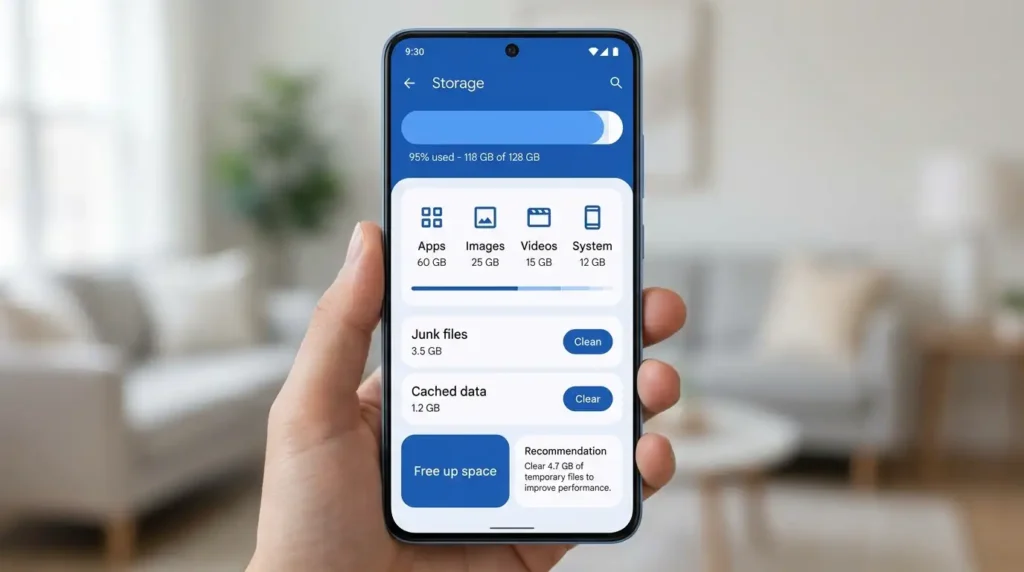
Low storage is the biggest culprit I see. When your phone has less than 20-25% free space, everything slows down because it struggles with temporary files.
Here’s what I do:
- Open Settings > Storage. See what’s eating space.
- Delete or offload old photos and videos. I use Google Photos’ backup and free-up feature, which works great.
- Uninstall apps you haven’t opened in months. I went through my drawer and axed about 15 games and random utilities. My Pixel felt lighter instantly.
- Clear cache for big apps. For individual apps: Settings > Apps > [App] > Storage > Clear Cache. Don’t clear data unless you want to log in again.
Files by Google is my go-to for this. It’s lightweight, from Google, and finds duplicates and junk without aggressive ads. I avoid most third-party cleaners now. Android’s built-in stuff in 2026 is good enough for most people.
Tame Background Processes and Battery Hogs
Go to Settings > Battery > Battery usage. See which apps are draining power in the background. I caught Instagram and a couple of shopping apps being sneaky. Restrict them: tap the app > Battery > Restricted.
For deeper control, limit background processes. This is where developer options shine.
Unlock Developer Options and Make It Snappier
This was the single biggest “wow” moment for me. I enabled it on all my test phones.
How to do it:
- Go to Settings > About phone.
- Tap the Build number 7 times quickly.
- Enter your PIN if asked. Developer options now appear under System.
Inside Developer Options, here are the tweaks that worked best for me:
- Animation scales: Set Window animation scale, Transition animation scale, and Animator duration scale to 0.5x (or Off if you don’t mind a more abrupt feel). Animations went from feeling sluggish to instant. My phone suddenly felt twice as fast, even though the actual hardware didn’t change. I keep them at 0.5x because Off can make some transitions weird.
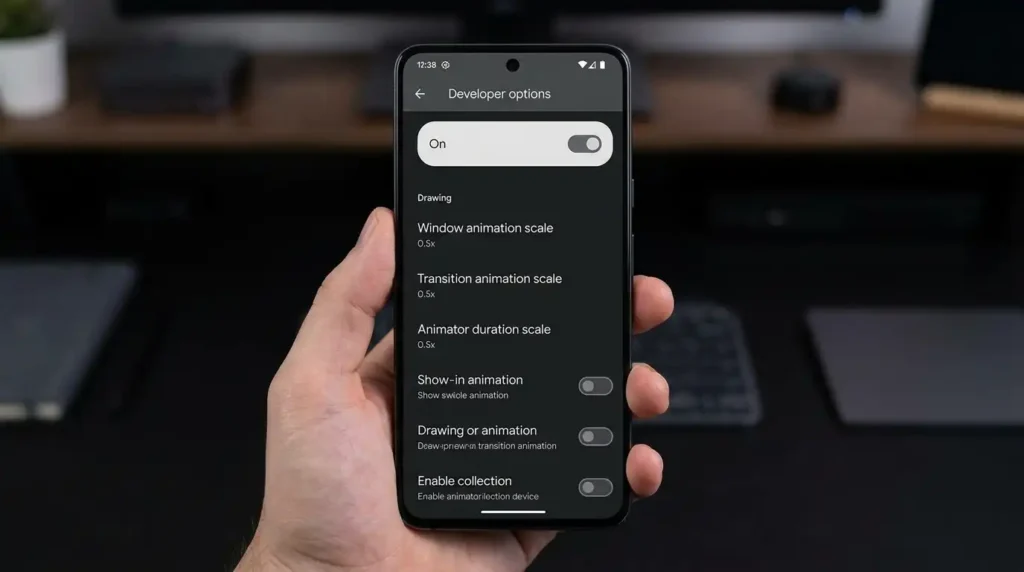
- Background process limit: Set to “At most 2 processes” or “No background processes.” This stops apps from lingering and eating RAM. Great for older phones, but test it, as some messaging apps might need background access.
- Force GPU rendering: Turn this on if your phone has decent graphics. It offloads some work to the GPU.
I also like “Suspend execution for cached apps” for better battery and smoothness.
Warning: Don’t mess with stuff you don’t understand here. I once turned on something that broke Wi-Fi calling temporarily. Revert if things feel off.
Manage RAM and Apps Smarter
In Developer Options, there’s also memory usage stuff. But day-to-day, I use the Recent Apps view and swipe away stuff aggressively. Android 16 handles multitasking better, but old habits die hard.
For apps that misbehave, Safe Mode is useful. Restart while holding the power button and select Safe Mode to see if a third-party app is the problem. I caught a dodgy VPN doing this once.
Battery and Performance Modes
Most phones have adaptive battery or performance modes. On my Pixel, I switch to “Extreme Battery Saver” only when needed, but for daily speed, I make sure it’s not in power-saving mode, which throttles performance.
Also, check for bloated manufacturer skins. Samsung’s One UI or Xiaomi’s HyperOS can add overhead. If you’re on a custom ROM-friendly device, that’s an advanced option, but not for everyone.
Keep It Clean Long-Term
- Restart regularly.
- Avoid live wallpapers and heavy widgets.
- Use lite versions of apps when available (Facebook Lite, etc.).
- Monitor with built-in tools instead of random optimizers.
I tried SD Maid and CCleaner briefly; they’re decent for deeper cleaning, but not daily drivers. Files by Google + built-in storage manager does 80% of the work safely.
One unexpected result: after doing the animation tweak and clearing space, my battery life improved noticeably because the CPU wasn’t working as hard on pointless stuff.
Common Mistakes to Avoid
- Downloading every “RAM booster” or cleaner with flashy ads. Many are junk or even risky.
- Clearing all cache at once too often: some apps need it for smooth operation.
- Ignoring updates. Android 16 and security patches make a real difference.
- Overloading with launchers and themes. Stick close to stock for best performance.
- Thinking hardware is dead. A mid-range 2024 phone can feel great in 2026 with these tweaks.
I almost factory reset my old OnePlus 9 after it slowed down, but these steps brought it back to usable daily driving for light tasks.
Real-World Test on Different Devices
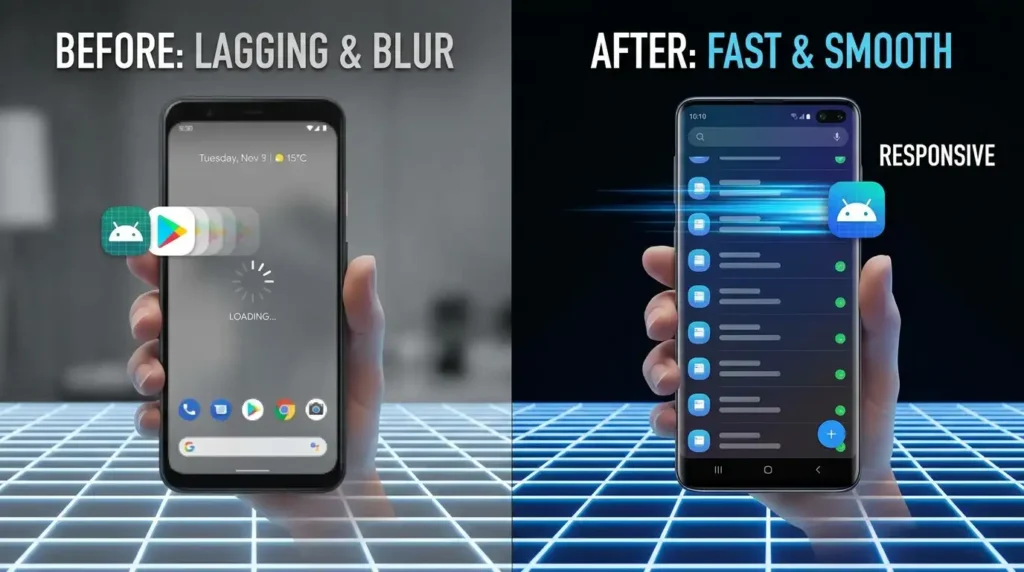
On my Pixel 8a (Android 16), animations and storage cleanup made it feel brand new.
On a friend’s Galaxy S22, restricting background activity and updates helped a lot with One UI bloat.
Budget Redmi phone: The background limit was key; otherwise, it was unusable after a year.

FAQ
1. Will these changes make my phone as fast as a new flagship? No, but it’ll feel a lot closer than before. Hardware limits still apply, but perceived speed improves dramatically.
2. Is it safe to mess with Developer Options? Yes, as long as you only change what I mentioned. You can always reset them or turn off Developer Options.
3. How often should I clear the cache? Once a month or when storage is low. Don’t obsess over it daily.
4. Do cleaner apps still work well in 2026? Built-in tools are better and safer. Use reputable ones like Files by Google sparingly.
5. What if my phone is still slow after all this? Check battery health in settings or consider if it’s time for a new device. Hardware degradation happens.
6. Does Android 16 really help older phones? Yes—better runtime and memory management give noticeable gains on supported devices.
7. Will turning off animations drain more battery? Usually, the opposite, because the system works less.
8. Can I do this on Samsung/Xiaomi/OnePlus? Absolutely. Steps are similar; menus might vary slightly by skin.
9. Is there a risk of losing data? No, none of these steps delete your personal files or apps unless you manually uninstall.
10. How do I know which apps are the real culprits? The battery usage screen and Developer Options memory stats are your best friends.
11. Should I root my phone for more speed? Not recommended for most people—risky and voids warranty.
12. What’s the quickest single fix? The animation scale tweak in Developer Options. It takes 2 minutes and provides instant results.
Disclaimer
This article is based on my personal testing and experiences with various Android devices in 2026. Results can vary depending on your phone model, Android version, and usage. Always back up important data before making major changes. I’m not affiliated with any app or manufacturer mentioned. If you’re unsure about any step, consult your device’s official support or a professional. Speed improvements aren’t guaranteed and won’t fix severe hardware issues.
There you have it—real ways to breathe new life into your Android phone without starting over. Give a few of these a shot today and let me know in the comments which one helped you the most. Your phone doesn’t have to feel old just yet.

Written by: Krunal,
Founder & Tech Writer at ToolsVila.online
I help people solve everyday tech problems with simple and practical guides. Over 6 years of hands-on experience with WordPress, Windows, Android & digital tools.