
How to Use Split Screen on Android: Real Multitasking Guide for 2026
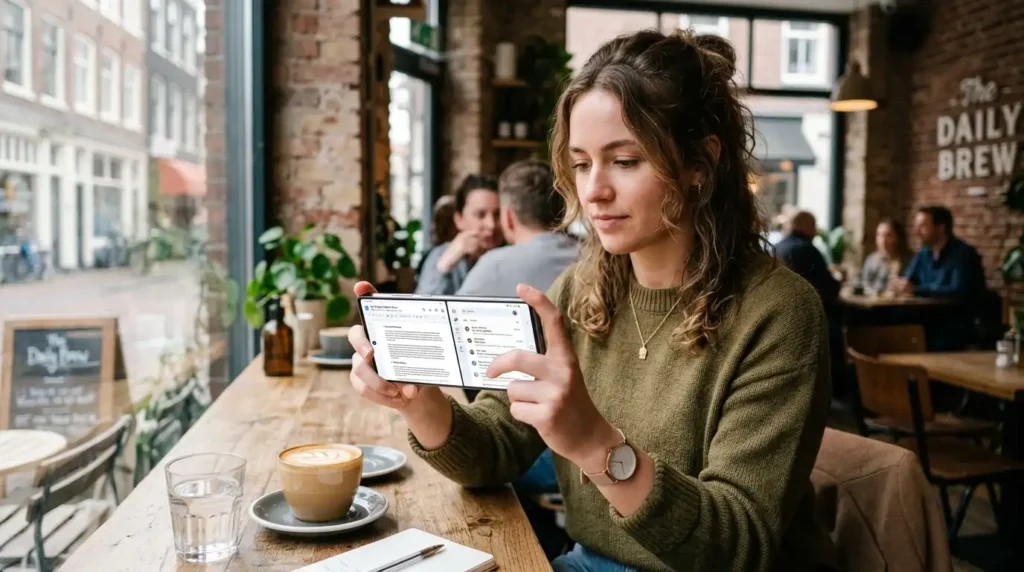
Last month, I was stuck in a coffee shop trying to finish a client report while waiting for an important email. My phone kept buzzing with notifications, and switching between Google Drive and Gmail every 30 seconds was driving me nuts. The battery was draining, and thumbs were cramping, a classic multitasking failure. Then I remembered split screen and kicked myself for not using it sooner. It changed everything that afternoon.
If you’re like me, juggling work, messages, maps, videos, and a million tabs, Android’s split screen (also called multi-window) is a lifesaver. I’ve been using it daily on everything from my old Pixel 6 to a newer Galaxy S24 and even a foldable. It’s not perfect, but once you get the hang of it, you’ll wonder how you survived without it.
Why Split Screen Actually Matters in Real Life
Picture this: You’re following a recipe in one half of the screen while checking your grocery list in the other. Or watching a YouTube tutorial while taking notes. Last week I was on a long drive (as a passenger, obviously) comparing flight prices in Chrome on top and booking in the airline app below. No more app-switching madness.
I first started using it heavily around Android 12-13 days, but newer versions like Android 15 and 16 made it way smoother with app pairs and better ratios. On smaller phones, it used to feel cramped, but the 90:10 option in recent updates is brilliant for glances.
Not every app plays nice, though. Some banking apps or games lock you out, which I learned the hard way when trying to split-screen a secure payment app. Lesson: Test your favorites first.
Basic How-To: Split Screen on Most Android Phones
The steps are pretty consistent across Pixel, Samsung, OnePlus, Motorola, etc., but manufacturer skins add extras. Here’s what works on stock-ish Android in 2026:
- Open the first app you want to use. Say, Chrome is for research.
- Swipe up from the bottom of the screen and hold (or hit the Recent Apps button if you use three-button nav) to open the overview screen.
- In the recent apps view, find your first app’s card. Tap and hold the app icon at the top of that card (not the whole preview).
- Select “Split screen” or “Open in split screen” from the menu. The app should snap to the top or one side.
- Choose the second app from the list that pops up. Done!
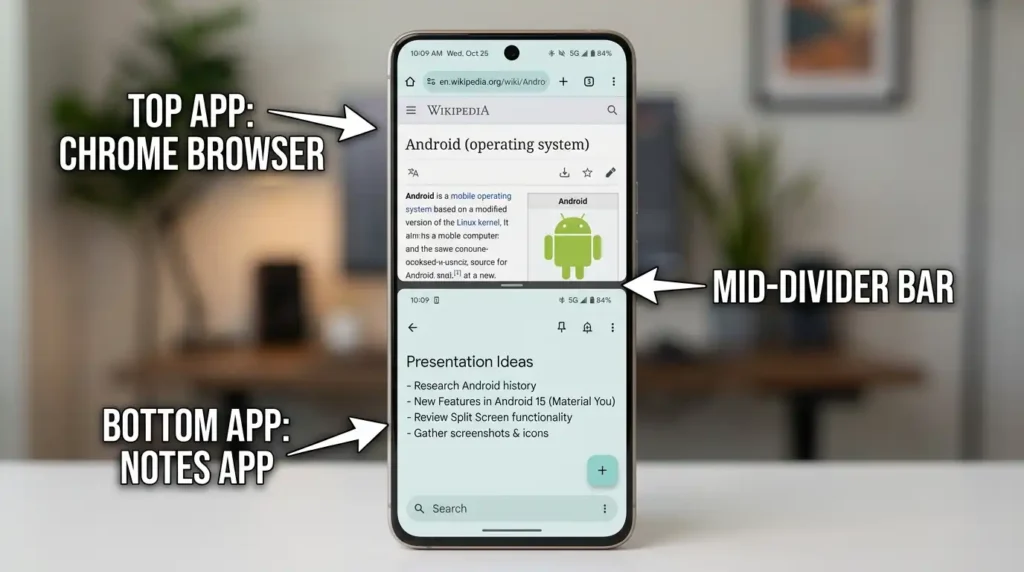
On Samsung phones, you can also enable “Swipe for split screen” in Settings > Advanced Features > Multi Window. Two-finger swipe from the bottom and boom, split. Super handy once you turn it on.
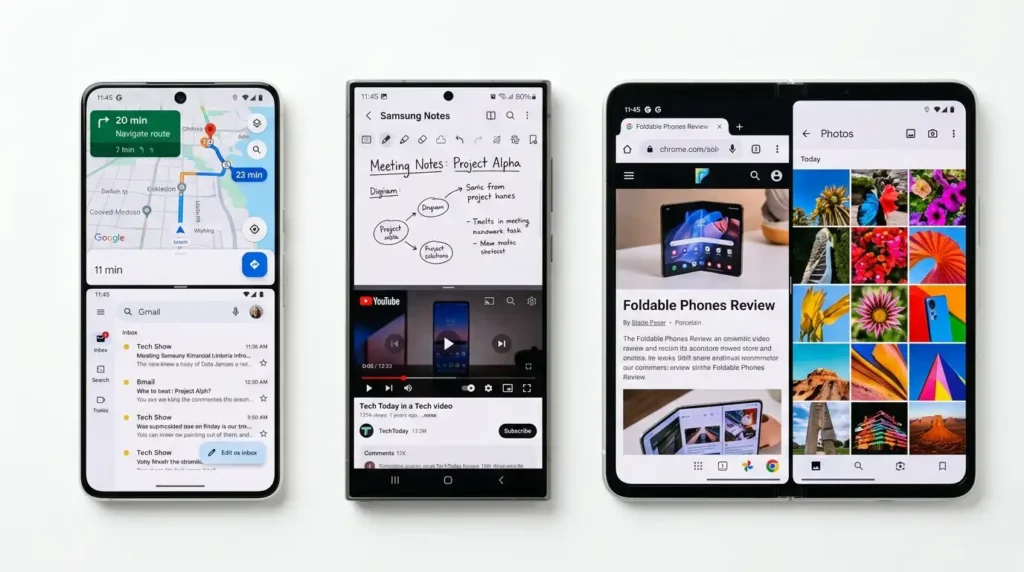
Pro move: Drag the divider bar up or down (or side to side in landscape) to resize the windows. In Android 16, you get more flexible ratios, including that sweet 90:10 for when you just need a tiny reference panel.
My Favorite Real-World Use Cases
- Work Mode: Docs on top, Slack or email below. Copy-paste without losing your place. Saved me hours on deadline days.
- Recipe King: AllRecipes or YouTube recipe video on one side, Notes app or shopping list on the other. No more sticky fingers on the phone.
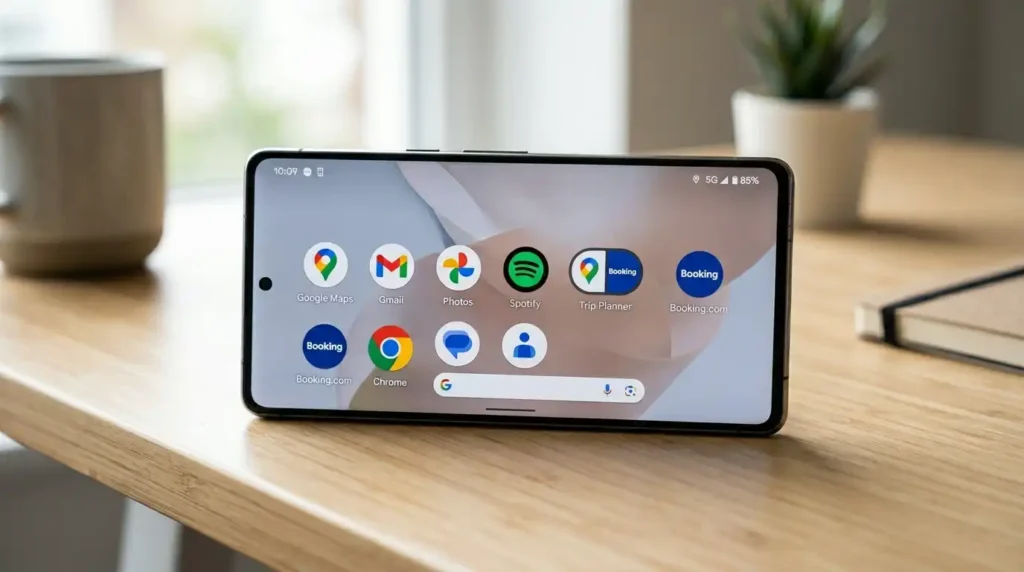
- Travel Planning: Google Maps split with Booking.com or an airline app. Zoom in on directions while confirming details.
- Entertainment: Netflix or YouTube in a smaller window while browsing Reddit. (YouTube Premium helps avoid ads here.)
- Shopping Smart: Amazon on the left, price comparison site on the right. Caught a better deal on headphones this way last Black Friday.
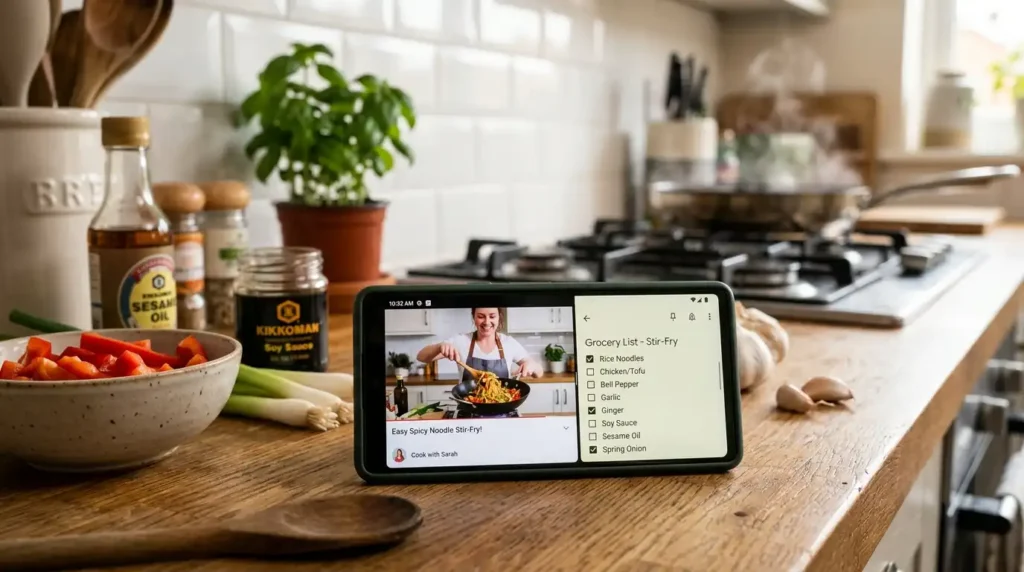
On my foldable, it’s even better, almost tablet-like. But even on regular phones, it shines.
Advanced Tips I’ve Picked Up the Hard Way
App Pairs (Android 15+): Once you have a useful split setup, go back to recent apps, tap the pair at the top, and save it as a shortcut to your home screen. Instant launch next time. Game-changer for daily routines.
Keyboard Tricks: In split screen, the on-screen keyboard usually goes to the active app. Tap the other window to switch. Some third-party keyboards handle this better.
Picture-in-Picture Bonus: For video apps, you can often shrink them to a floating window instead of a full split. Great when you need three “things” going.
Landscape Mode: Rotate your phone for wider views, perfect for reading articles while messaging.
Third-Party Help: If native split isn’t enough, apps like “Split Screen” from the Play Store let you create quick shortcuts. I’ve used them on older devices.
Developer options have some hidden tweaks (like forcing activities to resize), but I don’t recommend messing with them unless you’re comfortable with them causing weird bugs.
Common Mistakes and How to Fix Them
I messed up plenty of times:
- Forgetting which apps support it: Many don’t, especially games or DRM-heavy video apps. If it won’t split, it just won’t. Switch to a different browser or notes app.
- Performance hits: Two heavy apps = lag or battery drain. Close background stuff first. On mid-range phones, keep one light (like messaging) and one heavier one.
- Accidental triggers: Samsung users, turn off gesture shortcuts if they’re happening too much. Settings > Advanced features > Multi-window.
- Divider stuck or unresponsive: Restart the phone or force stop the apps. Rare, but annoying.
- Exiting without saving: Dragging the divider all the way down closes the bottom app. Be careful when resizing.
Pro tip: If one app crashes the split, just reopen recent apps and start fresh. Android has improved stability a lot since the early Nougat days.
Device-Specific Notes from My Testing
- Pixel phones: Cleanest experience, especially with recent Android updates.
- Samsung Galaxy: Most features include pop-up views, edge panels, and easy app pairing. My daily driver for multitasking.
- OnePlus/others: Usually close to stock with nice gesture additions.
- Tablets/Foldables: Way more usable due to bigger screens. If you have one, you’re winning.
Older phones on Android 7+ support it, but newer versions feel snappier.
Making the Most of It Daily
Start small. Pick two apps you switch between constantly and practice opening them in split screen. After a few days, it’ll become muscle memory.
I also combine it with notification bubbles or floating windows for true power multitasking. Battery tip: Lower brightness and use dark mode when splitting screens eat power when split.
Not everything needs split screen. Sometimes PiP or quick app switching is better. Learn when to use what.
FAQ
1. Does split screen work on all Android phones? Most phones running Android 7.0 or newer support it, but the exact steps and features vary by brand and version. Test it on yours.
2. Why won’t some apps go into split screen? Developers can block it for security or design reasons (banking apps especially). No fix—use a different compatible app.
3. Can I use split screen in landscape mode? Yes, and it’s often better for wider content. Just rotate your phone.
4. How do I adjust the size of the split windows? Drag the black divider bar. Newer Android versions offer more ratio options like 90:10.
5. Does split screen drain battery faster? A bit, since two apps run actively. Close extras and monitor usage.
6. Can I save my favorite app pairs? Yes, in Android 15+. Create the split, then save the pair as a home screen shortcut.
7. What about three apps at once? Native Android doesn’t support true three-way split on phones, but you can use PiP for video and split for the other two on some devices.
8. Is there a shortcut or gesture for faster access? On Samsung, enable two-finger swipe. Some launchers or apps add custom shortcuts.
9. Will it work on my Android tablet? Absolutely, often even better due to larger screen real estate.
10. How do I exit split screen? Drag the divider all the way to the top or bottom to close one app, or swipe up to recent apps and close both.
11. Any good apps that work great in split screen? Chrome, Gmail, Google Docs, Notes apps, Maps, messaging apps, YouTube (Premium), Kindle, and productivity tools generally shine.
12. My phone lags in split screen. What now? Update Android and apps, clear the cache, or restart. Avoid it on very low-end devices.
Disclaimer
This guide is based on my personal experience testing split screen across various Android devices and versions up to 2026. Features can differ by manufacturer, software updates, and specific apps. Always check your device’s settings for the latest options. Multitasking should enhance your experience, not frustrate it. Experiment safely and respect app limitations, especially with sensitive data.
Split screen isn’t going to turn your phone into a full desktop, but it makes mobile life way less chaotic. Give it a solid week of regular use and see if it sticks for you. I bet it will.
What are your go-to split-screen combos? Drop them in the comments; I’m always looking for new ideas. Happy multitasking!

Written by: Krunal,
Founder & Tech Writer at ToolsVila.online
I help people solve everyday tech problems with simple and practical guides. Over 6 years of hands-on experience with WordPress, Windows, Android & digital tools.