
How to Recover Deleted Photos on Android Without Root (2026 Guide)
I still remember the panic hitting me like a truck last month. I was on my Samsung Galaxy S24, clearing out some old junk from the camera roll after a weekend trip, and boom, I swiped the wrong way and deleted a whole folder of family photos from my kid’s birthday. Not just any photos, but the ones with the cake smash and grandparents visiting. Heart sinking, I thought they were gone for good. No root, no fancy tech setup, just a regular Android phone. But after some trial and error (and a few late nights), I got most of them back. Turns out, recovering deleted photos on Android without rooting is totally doable in many cases, especially if you act fast.
I’ve been tinkering with Android phones for years—Pixel, OnePlus, Samsung, you name it—and deleted photos are one of those nightmare scenarios that hits everyone eventually. Whether it’s an accidental swipe, a buggy app, or clearing cache too aggressively, it happens. The good news? Android has gotten smarter with recycle bins and cloud syncs, and there are solid no-root tools that actually work. I’ll walk you through what saved my bacon, plus the lessons I learned the hard way.
First Things First: Stop Using the Phone (My Big Mistake)
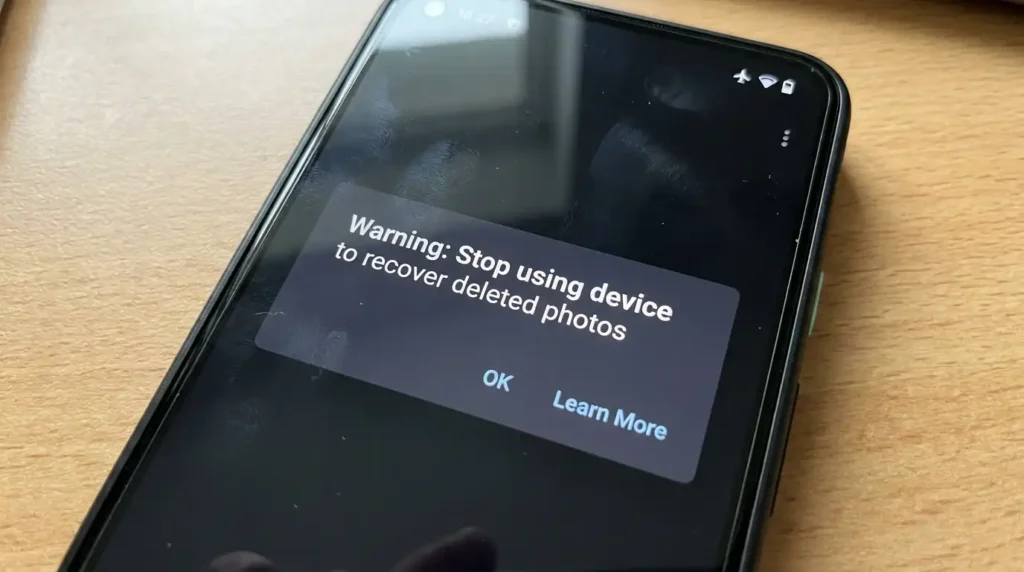
Right after deletion, the biggest tip I can give is to minimize activity on your device. Deleted photos aren’t immediately wiped; the space they occupied gets marked as available for new data. Take more pictures, install apps, or even browse the web, and you risk overwriting those photo fragments. I learned this the hard way once before, panicked, and started downloading recovery apps immediately, which probably overwrote a couple of images. Lesson: Put the phone in airplane mode if you can, and breathe.
Check the Built-in Trash Folders (This Saved Me Immediately)
Most modern Android phones and apps have a safety net. Don’t skip this step; it’s free and instant.
On my Samsung, I opened the Gallery app, tapped the three-dot menu, and found “Recycle bin” or “Recently deleted.” Photos hang out there for up to 30 days. I recovered about half my folder right there. Different brands vary: Google Pixel uses “Trash” in the Photos app; Xiaomi has something similar. Check your specific gallery app first.
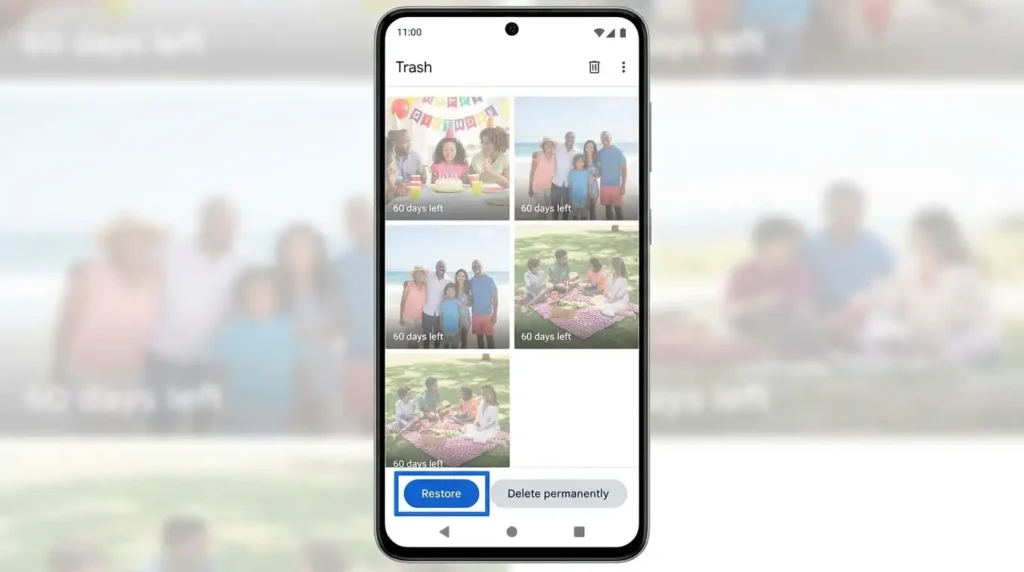
Google Photos Trash is a lifesaver. If you had backup enabled (and most of us do), head to the Google Photos app:
- Open Google Photos.
- Tap Library at the bottom.
- Select Trash.
- Pick your photos and hit Restore.
Google keeps them for up to 60 days. I had some older shots synced there that weren’t in the local gallery trash. Pro tip: Even if backup is off, photos sometimes linger in device folders. I restored a bunch this way last week.
If they’re not there, move on, but always check this first.
Cloud Backups and Other Syncs
I sync to Google Photos automatically on Wi-Fi, which has bailed me out multiple times. But what if you don’t?
- Google Drive or OneDrive: Search your account on the web or app for older backups.
- Manufacturer clouds, such as Samsung Cloud, Huawei Cloud, etc., often have their own recycle bins.
- WhatsApp/Telegram backups: Media sent there might have copies.
Last year, a friend lost vacation photos after a factory reset. Turns out his Google account had auto-backups from months prior. He downloaded them fresh. Always double-check your accounts on a computer for hidden gems.
Using On-Device Apps (No Root Needed)
When built-in options fail, apps from the Play Store can scan for remnants. Success depends on how recent the deletion was and how much new data has been written.
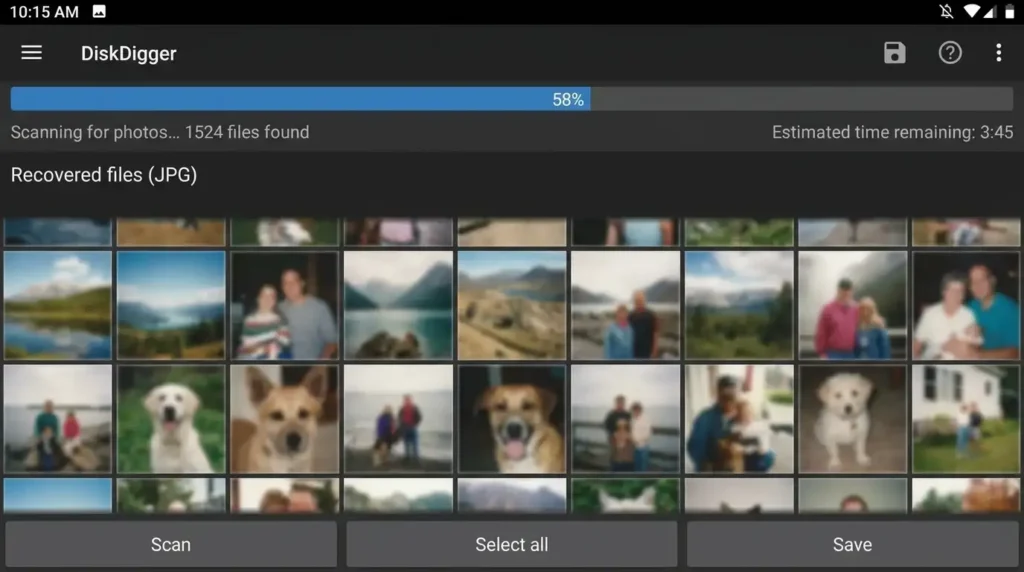
DiskDigger is my go-to. I’ve used it on a few devices now. The free version does a basic scan without root, pulling thumbnails and lower-res versions often enough to save the day. For full quality, deeper scans might need root, but the basic one works surprisingly well for recent deletes.
Here’s how I do it step-by-step:
- Download DiskDigger from the Play Store (avoid shady APK sites).
- Grant storage permissions; it needs “Access all files” for best results.
- Tap “Start basic photo scan.”
- Let it run (it can take a while; I usually plug in the charger).
- Preview results, select what you want, and save to a new folder.
I recovered a dozen party pics this way that were gone from the trash. Some were thumbnails, but I could enhance a few in editing apps. Other apps like DigDeep Image Recovery or Photos Recovery by Systweak do similar scans. Test a couple of results vary by phone model and Android version (works on 14, 15, and 16).
Dumpster is another one worth trying. It acts like a recycle bin you install before deletions. If you had it running, recovery would be effortless. I installed it after my scare for future peace of mind.
Be realistic: These won’t recover everything, especially older files or after heavy use. But for accidental deletes from the last few days, they shine.
PC-Based Recovery Tools (The Heavy Hitters)
For stubborn cases, connecting to a computer unlocks better software. No root required on most.
Tools like Tenorshare UltData, Dr.Fone – Data Recovery, Stellar Data Recovery for Android, or EaseUS MobiSaver let you scan via USB. I tried UltData on my setup recently for a deeper dive.
General steps (varies slightly by tool):
- Install the software on your Windows/Mac.
- Enable USB debugging on your Android (Settings > About phone > Tap Build number 7 times > Developer options > USB debugging).
- Connect your phone and follow prompts to scan for photos/gallery.
- Preview and recover on your PC.
These often recover more than phone apps because they can access deeper caches and databases. I got back a few extra images this way that the on-device scans missed. Keep your phone charged and don’t interrupt the process. Some have free trials to scan and preview.
Important note: Results aren’t guaranteed, especially on newer Android versions with better encryption. But they’ve worked for me and plenty of readers I’ve chatted with.
Real-Life Scenarios and Unexpected Wins
One time, my wife deleted our dog’s photos while organizing. We thought they were toast, but Google Photos Trash had them. Another instance: After a phone update glitched and cleared some media, DiskDigger pulled cached versions from thumbnails.
I also messed up once trying a “deep clean” app that wiped more than intended. Always research apps and read recent reviews. Some promise miracles but deliver junk or ads.
For SD card users (rarer now with internal storage), recovery is often easier. Pop the card into a reader and use PC tools like Recuva (Windows) or Disk Drill.
Common Mistakes to Avoid
- Waiting too long: Time is your enemy. Act within hours or days.
- Installing sketchy apps: Stick to the Play Store. I once tried a random “recovery” app that was basically malware, so I had to factory reset. Stick with known ones like DiskDigger.
- Overwriting data: As I said, stop heavy usage.
- Ignoring backups: I now have auto-backup to Google Photos + monthly manual PC copies. Set it and forget it.
- Rooting unnecessarily: You don’t need it for basic recovery, and it voids warranties/risks of bricking.
- Expecting 100% recovery: Be prepared for partial wins, especially with permanent deletes.
Also, on Android 10+, internal storage encryption makes deep recovery trickier without specialized forensic tools, but the methods above still catch a lot.
Prevention Tips from Someone Who’s Been There
- Enable Google Photos backup (high quality or original).
- Use gallery apps with robust recycle bins.
- Install Dumpster proactively.
- Regularly back up to a PC or external drive.
- Take screenshots of important stuff as extra copies.
- For pros: Use apps that auto-save to the cloud.
These habits have saved me more grief than any recovery tool.

Wrapping It Up
Recovering deleted photos without root isn’t magic, but with quick action and the right steps, you can often salvage memories that matter. I got my birthday photos back, some perfect, some a bit lower-res, but enough to commemorate the day. Don’t panic if it happens to you; start with trash folders, then apps, then PC tools.
Stay safe out there, back up religiously, and if you’ve got your own recovery story, drop it in the comments. I’ve tested these on recent devices like the S24 and Pixel 9, and they hold up in 2026.
FAQ
1. Can I really recover permanently deleted photos on Android without root? Yes, often, especially if recent. Trash folders, scans, and PC tools recover many cases, but there are no guarantees if data is overwritten.
2. How long do photos stay in Google Photos trash? Up to 60 days. Check there first.
3. Does DiskDigger work without root? Yes, the basic photo scan does. Full recovery needs root, but the basics are solid for many users.
4. Will these methods work on Android 16? They do on recent versions I’ve tried, including 16 on Samsung and others, but success varies.
5. What if I have no backups at all? On-device apps and PC software are your best bet. Stop using the phone immediately.
6. Are PC recovery tools safe? Reputable ones like UltData, Dr.Fone, and Stellar are generally safe. Download from official sites and scan with an antivirus.
7. Can I recover photos after a factory reset without root? Tougher, but possible with PC tools if not too much new data has been written. Chances drop significantly.
8. Do recovery apps cost money? Many have free scans/previews. Full recovery or pro features often require payment.
9. What about SD card photos? Easier to remove the card and use PC recovery software for better results.
10. How can I prevent this in the future? Auto-backups to Google Photos, manual PC copies, and apps like Dumpster. Enable recycle bins everywhere.
11. Is there a difference between internal storage and SD card recovery? Internal is harder due to encryption, but tools still work. SD cards are more straightforward.
12. My photos aren’t showing in previews—now what? Try another tool or PC method. Sometimes file signatures are fragmented.
Disclaimer
This article is based on my personal experiences and common methods that have worked for me and others. Data recovery success isn’t guaranteed and depends on many factors like time since deletion, device usage, and storage conditions. I am not affiliated with any apps or software mentioned. Always back up your data regularly, use trusted sources, and proceed at your own risk. If important data is at stake (like legal or business photos), consider professional data recovery services. No method can recover data that’s been securely overwritten.

Written by: Krunal,
Founder & Tech Writer at ToolsVila.online
I help people solve everyday tech problems with simple and practical guides. Over 6 years of hands-on experience with WordPress, Windows, Android & digital tools.