
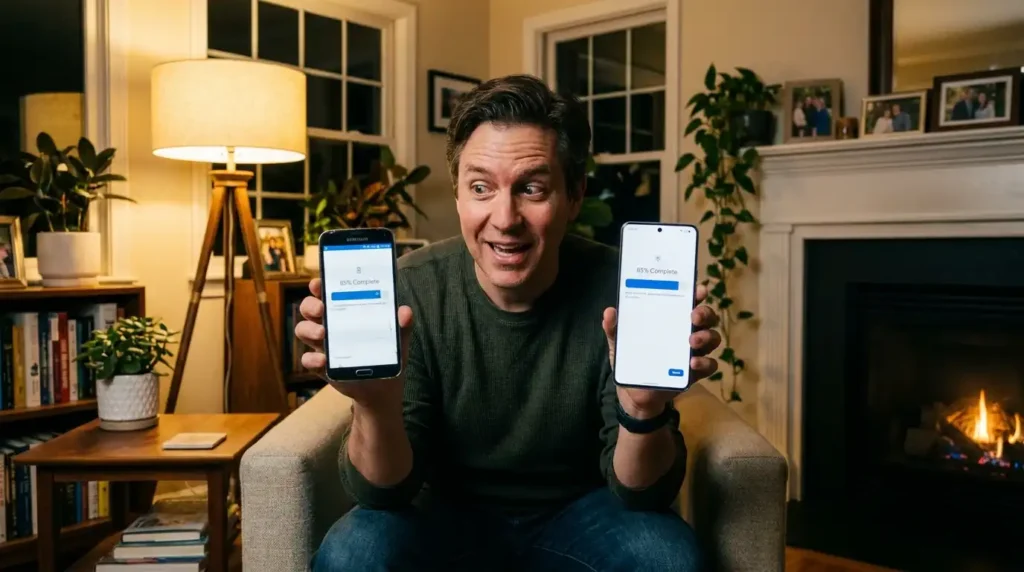
I remember the exact moment I upgraded from my beat-up Pixel 7 to the Pixel 9 Pro last fall. I was sitting in my living room, new phone in one hand, old one in the other, and a slight panic set in. All those years of photos from family trips, WhatsApp chats with friends, saved game progress, and random app logins—did I really want to start from scratch? I’d done half-assed transfers before and ended up missing half my stuff. This time, I wanted it done right. After a couple of hours (and one minor hiccup), everything moved over more smoothly than I expected. If you’re staring at your new Android phone wondering the same thing, I’ve been there. Let’s get your data across without the headache.
Why This Matters More Than You Think
Switching phones shouldn’t feel like moving house. A few years back, I jumped from a Samsung Galaxy S22 to an S24 Ultra right after its release. I thought I could wing it with just Google backups, but I lost a bunch of custom home screen layouts and some app data that didn’t sync properly. Lesson learned: the built-in tools have come a long way, especially with Android 15 and the early 2026 updates rolling out. These days, you can copy almost everything—contacts, photos, messages, apps, settings, even some app data—in one go. But skipping prep work or picking the wrong method can leave you frustrated.
I’ve helped a few buddies with their upgrades, too. One guy transferred wirelessly during a road trip and watched the progress bar crawl because of spotty hotel Wi-Fi. Another rushed the cable method and accidentally skipped some permissions. Small stuff, but it adds up. The good news? Android makes this pretty straightforward now, whether you’re going Pixel-to-Pixel, Samsung-to-anything, or mixing brands.
Prep Work: Don’t Skip This
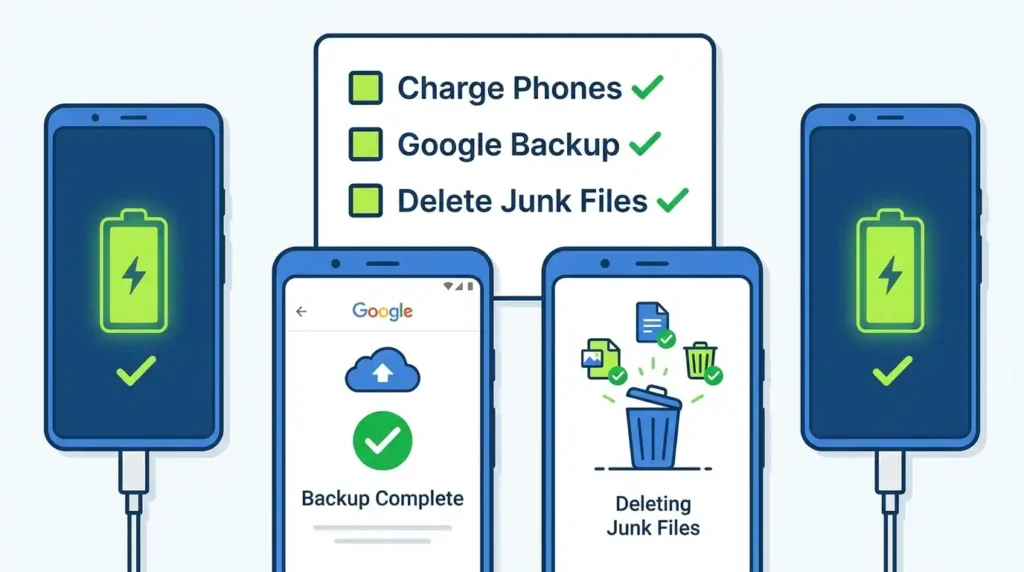
Before you even power on the new phone, take 15-20 minutes on the old one. Charge both devices to at least 70%. Trust me, nothing kills the mood like a dead battery mid-transfer.
Go to Settings > Accounts and Backup (or search for “Backup”) and make sure everything’s synced to your Google account. Turn on backups for photos (Google Photos), contacts, calendar, and device settings. Hit “Back up now” and wait for it to finish. This saved me when my direct transfer glitched once.
Clear out junk: Uninstall apps you haven’t opened in months, delete duplicate photos, and free up space. My old phone had 50GB of random downloads I never needed—getting rid of them made the transfer faster and gave the new phone breathing room. Also, note down any two-factor app seeds or important passwords, just in case.
The Easiest Way: Built-in Android Transfer During Setup
This is my go-to method for most people in 2026. It works great across brands like Pixel, Samsung, Motorola, etc.
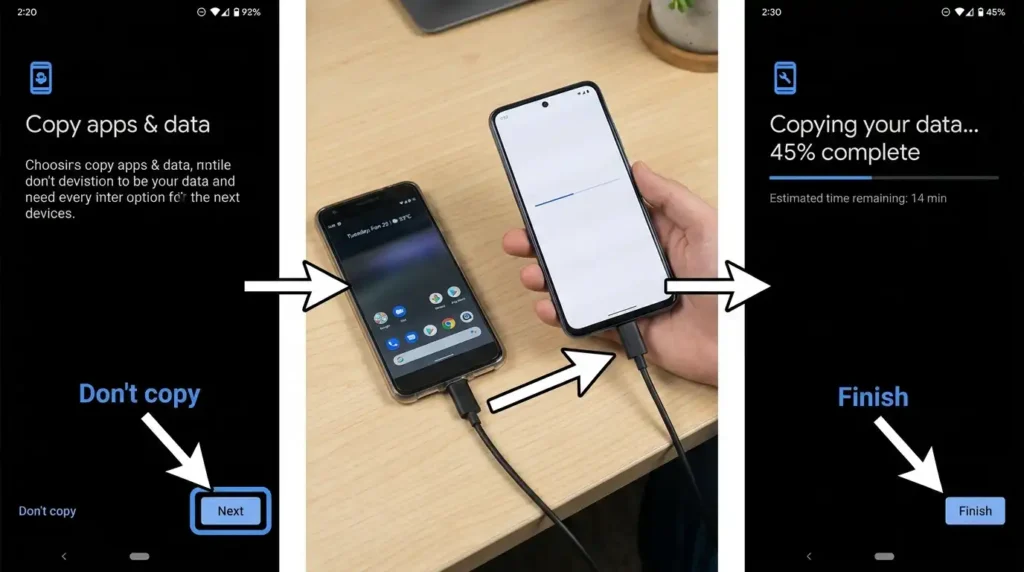
- Turn on your new phone and go through the initial setup: language, Wi-Fi, Google account sign-in.
- When you hit the “Copy apps & data” or “Transfer your data” screen, choose to copy from your old Android device.
- On your old phone, you’ll see a prompt to connect. You have two options:
- Cable (recommended): Use a USB-C to USB-C cable. Plug it in when prompted. It’s faster and more reliable, especially for large photo libraries or app data. I transferred 120GB this way in under 45 minutes last time.
- Wireless: Both phones connect over Wi-Fi. Slower if you have tons of data, but no cable needed.
- Select what to transfer: apps, photos, videos, contacts, messages, call logs, settings, wallpapers—you name it. I usually go for everything except maybe huge offline maps or podcasts that can be redownloaded.
- Hit Copy and let it run. Keep both screens on (set timeout high) and stay nearby. The new phone might restart a few times.
Once done, you’ll spend the next hour logging into apps as they update and restore data. Most Play Store apps reinstall automatically when you log in.
I did this moving to my Pixel 9 Pro in late 2025. Photos from Google Photos appeared instantly, WhatsApp chats were restored after I verified my number, and even my notification settings carried over. The only surprise? Some banking apps wanted fresh logins for security, which makes sense.
Samsung-Specific: Smart Switch Magic
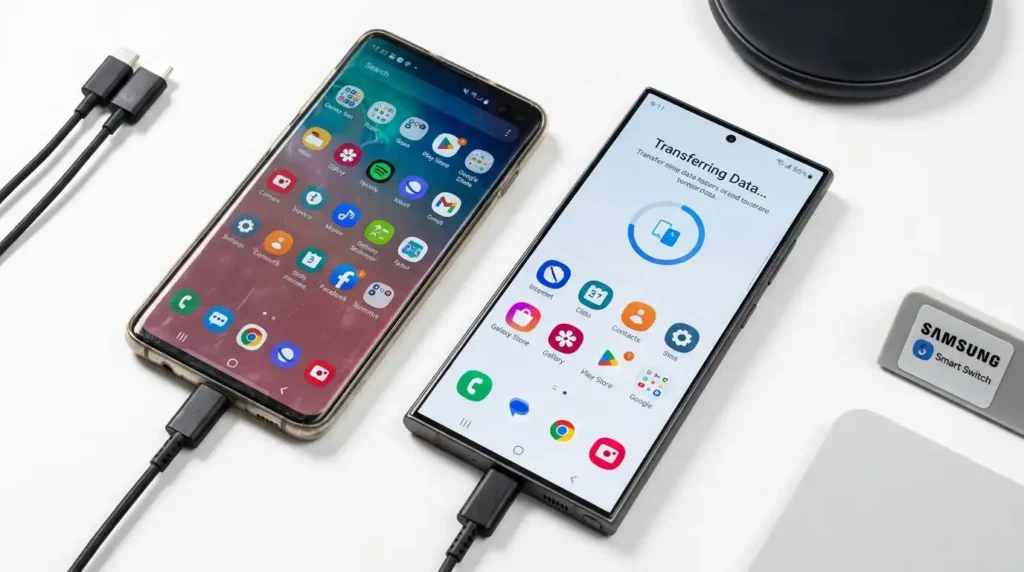
If your new phone is a Galaxy (S25, S26 series, etc.), download Smart Switch on both devices from the Play Store. It’s preinstalled on many new galaxies.
- Open Smart Switch on the new phone → Receive data → From Galaxy/Android.
- On the old phone: Send data.
- Connect via cable or wirelessly (QR code works well).
- Choose categories. It handles home screen layouts, Samsung-specific settings, and even some app data better than the generic method.
I used this upgrade within the Samsung ecosystem last year. It copied my Bixby routines and Gallery albums perfectly. One friend transferred from a OnePlus to a Galaxy S24 and said it was smoother than expected for a cross-brand. Just know DRM-protected music or certain app data might not move fully.
Cloud Backup Route (When You Don’t Have the Old Phone Nearby)
Sold your old phone already, or is it dead? No problem.
- On old phone (if accessible): Full Google backup as mentioned.
- During new phone setup, sign in with the same Google account and choose to restore from backup.
- For photos/videos: Google Photos backup is clutch. Enable “Backup & sync” beforehand.
- Messages: Google Messages or carrier backups.
- Apps: Play Store will suggest reinstalls.
This isn’t as complete as direct transfer—some app-specific data (like game saves) might need manual restoration, but it covers 80-90% for most folks. I used this after lending my old phone to family and still got most everything back.
Third-Party Apps Worth Considering
For extra control or post-setup transfers:
- Phone Clone or similar “smart transfer” apps on the Play Store for wireless moves.
- Google One offers bigger backups if you’re on a paid plan.
- For specific stuff like WhatsApp: Use the built-in backup to Google Drive, then restore on the new phone.
I don’t rely on random third parties heavily because the official tools are solid now, but they can fill gaps.
Common Mistakes I’ve Made (So You Don’t)
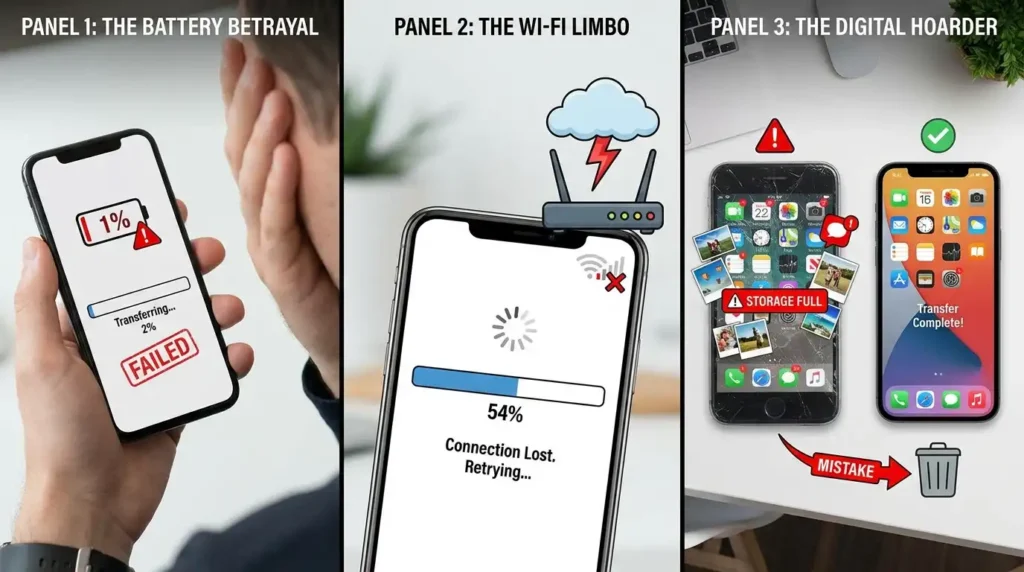
- Rushing permissions: On the old phone, always tap “Allow” or “Trust this device” when prompted. I ignored one once, and the transfer failed halfway.
- Low battery or interruptions: Phones screen-locked or died midway. Plug them in.
- Transferring everything, including junk: My first big upgrade cloned years of bloat. Clean first.
- Forgetting Wi-Fi passwords or saved networks: They usually transfer, but double-check.
- Assuming all app data moves, games, fitness apps, or niche tools often need manual login or cloud restore. I lost a month’s fitness tracking once before learning to check each app’s backup option.
- Wireless on weak network: Switched to cable after watching progress stall at 20% for 30 minutes.
Another real one: Large video libraries can take hours. Start the transfer before bed or during a long meeting.
After the Transfer: Polish It Up
Once the data is over:
- Update all apps via the Play Store.
- Check Settings > Accounts for sync.
- Repair Bluetooth devices and smart home stuff.
- Test critical apps: banking, email, photos.
- Factory reset the old phone properly if selling (Settings > System > Reset options).
I always take a final backup of the new phone right after to be safe.
Real-Life Use Cases
- Family upgrade: Mom went from an older Moto to a new Pixel. Direct transfer kept all her grandkids’ photos and contacts intact—no tech support calls needed.
- Work switch: A colleague moved from Samsung to Pixel for better camera software. Smart Switch + Google sync handled emails and calendars seamlessly.
- Budget flip: I bought a used phone once and restored it via Google backup. Saved me hours setting up from zero.
These methods have improved a ton since the Android 14/15 days. By mid-2026, with Android 16 tweaks, it’s even more reliable for things like better multitasking during transfer.
FAQ
1. How long does the data transfer take? Depends on the amount of data and the method. A cable for 50- 100 GB usually takes 30-90 minutes. Wireless can double that. Small transfers finish in under 15 minutes.
2. Will all my apps transfer? Most will reinstall, but not every app’s login data or cache moves perfectly. Expect to log in again for secure apps.
3. What if I don’t have the old phone anymore? Use Google backups and cloud services like Photos, Drive, and app-specific restores. It’s not perfect, but it gets you most of the way.
4. Does it transfer WhatsApp chats? Yes, if backed up to Google Drive beforehand. Verify your number on the new phone to restore.
5. Can I transfer over mobile data instead of Wi-Fi? Technically possible but not recommended—it’s slow and eats your data plan. Stick to Wi-Fi or cable.
6. What about passwords and saved Wi-Fi networks? They usually transfer if using Google Password Manager. Some might need re-entry.
7. Is Smart Switch only for Samsung phones? Best for Galaxy to Galaxy, but it works from other Androids too, though with some limitations on app data.
8. My transfer got stuck—what now? Restart both phones, check cable/connections, or try fewer data types. Sometimes waiting or restarting the setup helps.
9. Will my paid apps transfer? Yes, as long as you’re signed into the same Google account. No repurchase needed.
10. Can I do this after setup is complete? Yes, on many devices (especially Pixels), you can go back into settings and copy additional data from backup or old device.
11. Does it work for SD card files? Physical SD cards need to be manually copied or inserted into the new phone. The cloud is easier for media.
12. Is it safe? Any risk of data loss? Official methods are secure. Always back up first, and avoid shady third-party tools.
Disclaimer
This guide is based on my personal experiences and common methods as of 2026. Results can vary by device model, Android version, and data types. Always back up important information before transferring. I’m not affiliated with Google, Samsung, or any manufacturer. Double-check official support pages for your specific phones if you run into issues. Data privacy is your responsibility; use trusted connections only.
Switching phones is exciting once the data’s over. You’ll wonder why you stressed about it. If something weird happens in your case, drop a comment. Happy to brainstorm. Now go enjoy that shiny new Android.

Written by: Krunal,
Founder & Tech Writer at ToolsVila.online
I help people solve everyday tech problems with simple and practical guides. Over 6 years of hands-on experience with WordPress, Windows, Android & digital tools.