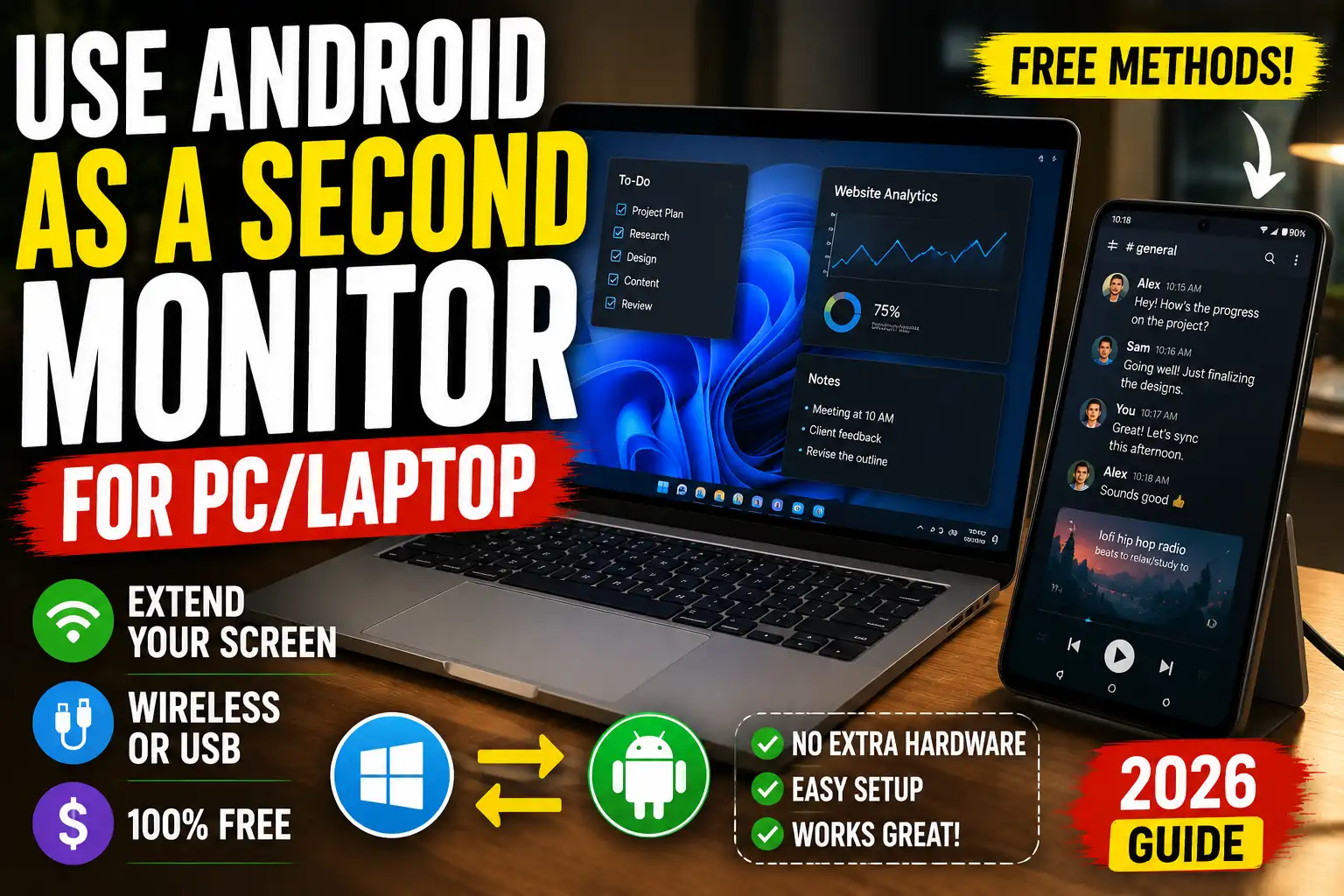
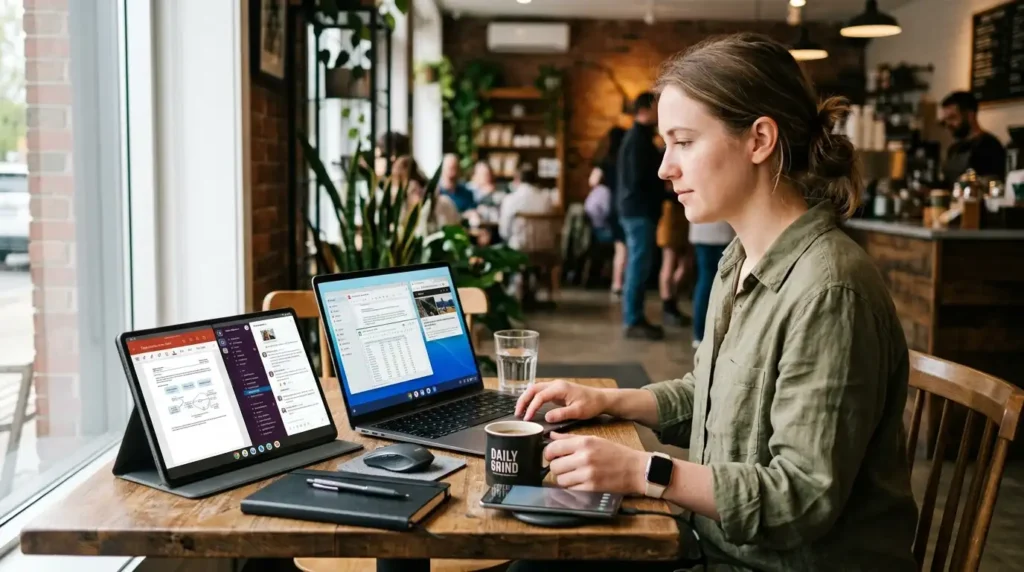
Last month, I was stuck in a tiny Airbnb with just my laptop for a week-long project. Deadlines were piling up, and switching between browser tabs, Slack, docs, and my email felt like playing Tetris with my sanity. I remembered an old Android tablet gathering dust in my bag and thought, “Why not turn this thing into a second screen?” Turns out it works surprisingly well for free, and I’ve been using it regularly since. No need to drop cash on a portable monitor.
If you’re like me, working from coffee shops, juggling multiple apps, or just hating that cramped laptop screen, this guide is for you. I’ve tested these setups on Windows 11 laptops and a couple of older Android devices (a Samsung Tab S6 Lite and a Pixel 6a). There are hiccups, but once dialed in, it genuinely boosts productivity.
Why Bother Turning Your Android Into a Second Screen?
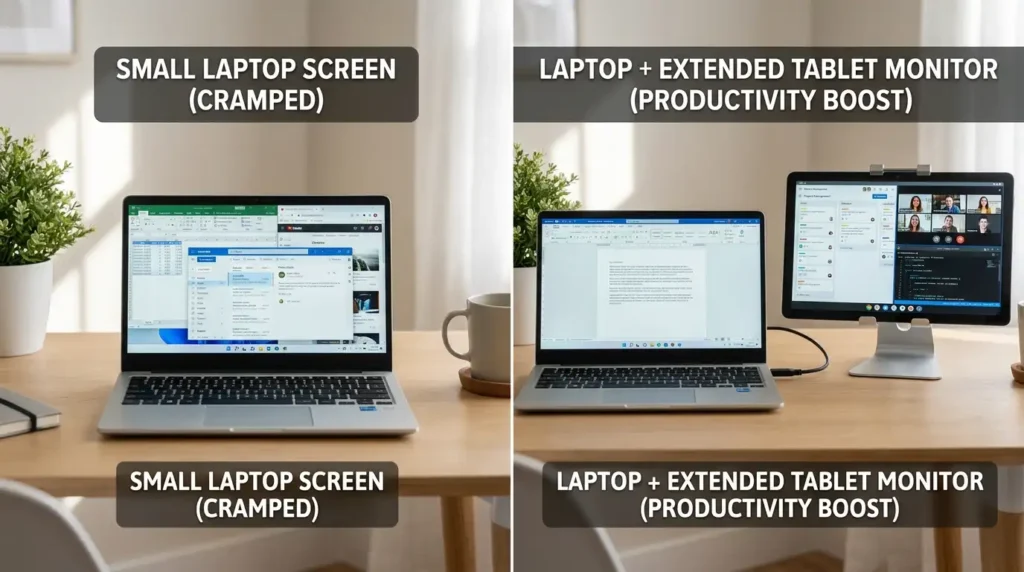
Real talk: extra screen space changes everything. I use my phone/tablet for reference docs, chat windows, or even a dedicated Spotify/YouTube player while editing on the main laptop. During travel, it saved me from buying yet another gadget. Battery drain and occasional lag are real, but for non-gaming tasks like writing, coding, or light design, it’s a lifesaver.
I tried this setup first during a rushed client presentation prep. Dragging reference images to the Android screen while keeping my main workspace clean felt magical. But yeah, I also learned the hard way about Wi-Fi interference in crowded cafes.
Free Method 1: Spacedesk (Best for Windows Users)
Spacedesk has been my go-to for over a year now. It’s free for personal use, supports both wireless and USB connections, and turns your Android device into a proper extended display (not just mirroring).
My Experience: Wireless works fine at home, but USB is noticeably smoother with less lag. I once had the tablet disconnect mid-meeting because of spotty hotel Wi-Fi. Lesson learned: always have the cable ready.
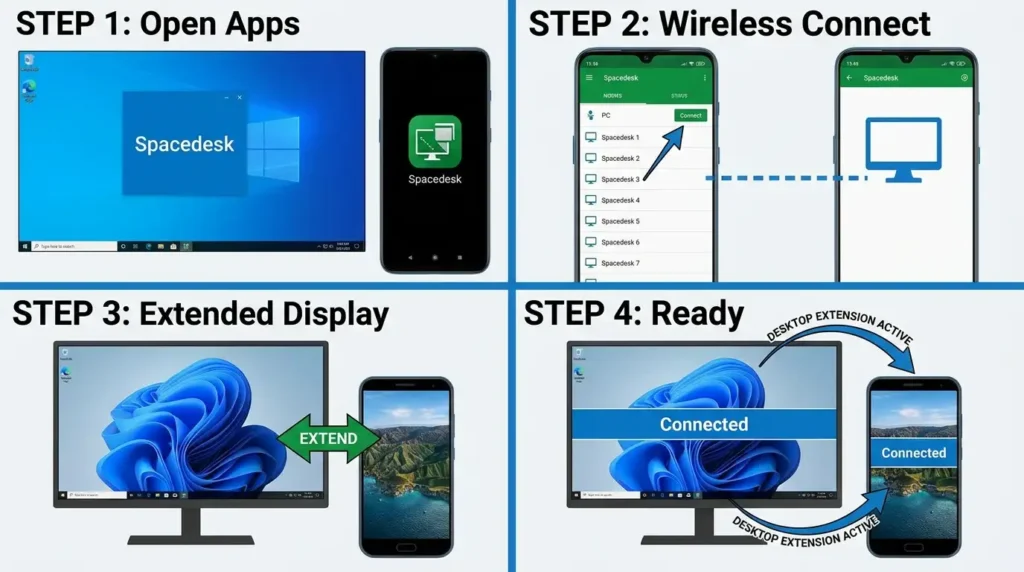
Step-by-Step Setup (Wireless):
- On your Windows PC/laptop, head to the official Spacedesk website (spacedesk.net) and download the server/driver software. Install it; it takes a minute.
- Grab the Spacedesk app from the Google Play Store on your Android device.
- Make sure both devices are on the same Wi-Fi network. Open the server on your PC; it’ll show your IP address.
- Launch the app on Android, and it should detect the PC automatically. Connect, and boom, your device appears as a second monitor.
- On Windows, hit Win + P and choose “Extend.” Drag windows over to the Android screen. The touchscreen works for basic interaction.
USB Setup for Better Performance:
Connect your phone via USB cable (enable USB debugging in Developer Options if needed). In the Spacedesk app on Android, switch to USB mode. It often gives near-zero lag. I use this when I’m plugged in at my desk anyway.
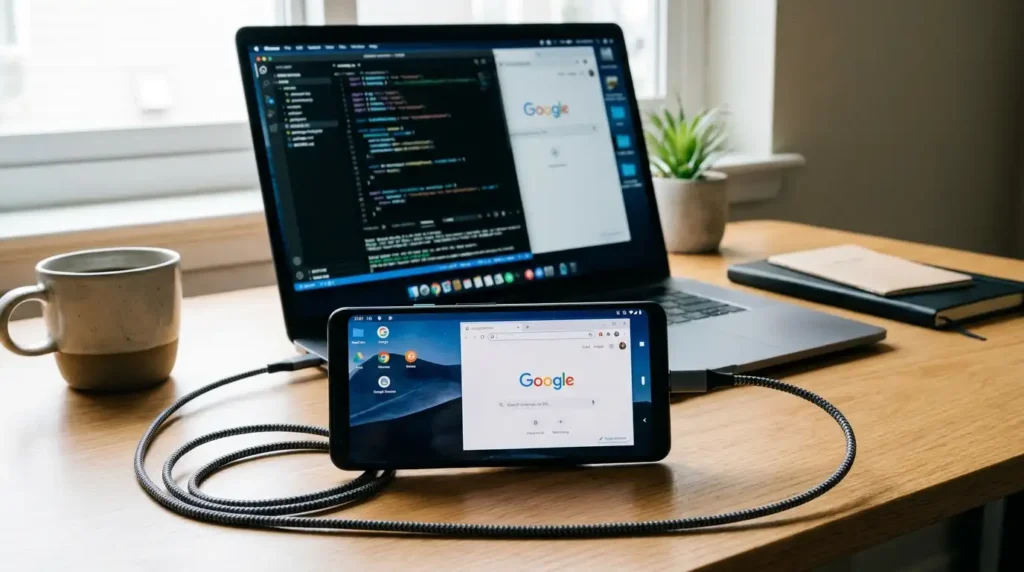
Pro tip: Adjust resolution in the app settings to match your phone’s capabilities for a sharper image. I usually set it to 1080p on my tablet.
Free Method 2: Deskreen (Great Cross-Platform Option)
If you’re on Mac or Linux or want something fully open-source, Deskreen is awesome. It uses your browser on the Android device, so no dedicated app is required on the phone side in some cases.
Setup Steps:
- Download Deskreen from deskreen.com for your main computer (Windows, Mac, or Linux).
- Run it—it shows a QR code and IP address.
- On your Android, open Chrome or any modern browser and enter the IP or scan the QR.
- Allow the connection on your PC. For a true extended display, you might need a virtual display driver or dummy plug (a cheap HDMI dummy on Amazon if required for some setups).
It’s not as polished as SpaceDesk for Windows, but it works reliably over a local network. I tested it on a Linux machine recently and was impressed with how simple it felt.
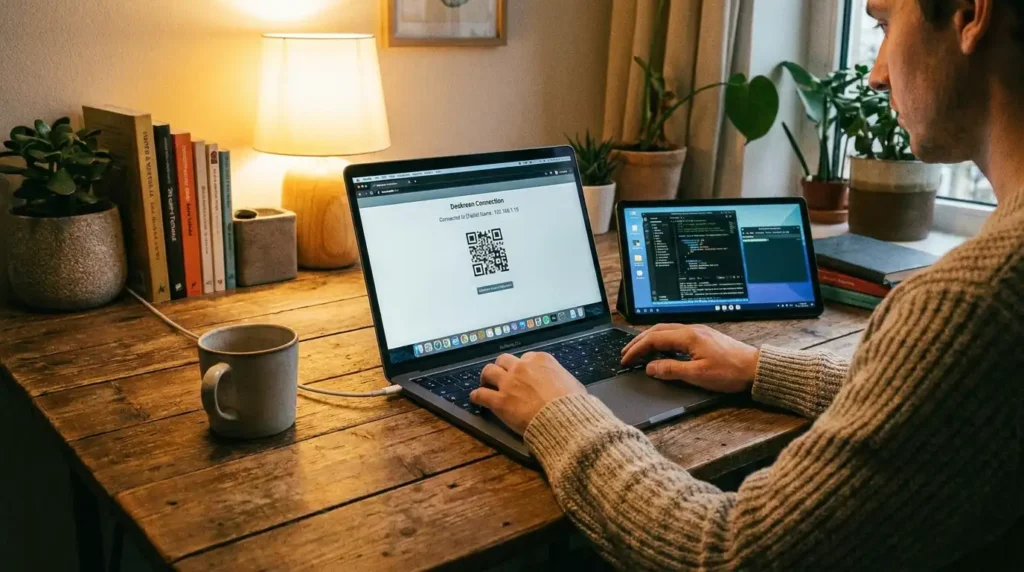
One unexpected win: multiple devices. I once had my phone as a tiny third screen for notifications while the tablet handled docs.
Other Free or Low-Friction Options
- Splashtop Wired XDisplay: Free for USB. Solid for low-latency if wireless feels laggy. Good fallback.
- For Mac users, some open-source experiments are popping up, but Spacedesk or browser-based tools often do the trick with workarounds.
I’ve found that older Android versions (Android 8+) generally work, but newer devices with better processors handle higher refresh rates.
Real-World Use Cases That Actually Worked for Me
- Content Creation: Main laptop for Premiere/DaVinci timeline, tablet for timelines, scripts, or reference footage.
- Remote Work: Laptop for Zoom/Teams, phone for Slack, and email without constant alt-tabbing.
- Travel Hacking: In that Airbnb, I used the tablet vertically for chat and research—felt like a mini command center.
Battery life note: Expect 4-6 hours on a typical phone before it drains noticeably. Tablets fare better. I keep mine plugged in when possible.
Common Mistakes to Avoid (I Made Most of These)
- Ignoring Wi-Fi Quality: Public networks or weak signals kill performance. Use your phone’s hotspot as a surprisingly stable network.
- High Expectations for Gaming/ Video: Don’t. Latency makes fast action unplayable. Stick to productivity.
- Forgetting Permissions: USB debugging, accessibility services, or firewall blocks trip people up. Check Windows Firewall exceptions for SpaceDesk.
- Overheating: Phones get warm during extended use. Give it breathing room.
- Resolution Mismatch: Default settings can look blurry. Tweak in the app.
Another lesson: Background apps on Android can interfere. Close everything unnecessary for the best results.
Tips for a Smoother Experience
- Update everything: apps, drivers, OS.
- For USB, use a good quality cable (data transfer capable, not just charging).
- Experiment with orientation: landscape for more space, portrait for reading.
- Combine with mouse/keyboard sharing apps like KDE Connect (Android + Linux/Windows) for seamless flow.
- Monitor performance: Spacedesk has settings for a quality vs. speed trade-off. Lower quality for stability on slower connections.
I’ve pushed this setup during long flights (with downloaded content) and busy deadlines. It’s not perfect, but free and effective.
FAQ
1. Does this work with any Android phone or tablet? Most devices on Android 8.0 and up work. Newer ones with better hardware perform noticeably smoother. Test your specific model first.
2. Is there input lag? Wireless has some issues, especially on crowded networks. USB reduces it a lot. Fine for office work, not for precision gaming.
3. Can I use it with Mac or Linux? Yes, with Deskreen or similar tools. Spacedesk is Windows-focused but has limited cross-platform support. Check compatibility.
4. Will it drain my phone battery fast? Yes, screen-on + streaming uses power. Use a cable for charging while connected or a power bank.
5. Is the connection secure? A local network only for these tools is generally safe. Avoid public Wi-Fi for sensitive work.
6. Can I extend to multiple Android devices? Yes, Spacedesk and Deskreen support multiple users, though performance depends on your PC’s power.
7. Does the touchscreen work on the second screen? Mostly yes, tap-to-click, and basic gestures. Not as fluid as a dedicated monitor, but usable.
8. What if it disconnects randomly? Check network stability, restart apps, or switch to USB. Firewall or sleep settings often cause this.
9. Is it completely free? The core features of Spacedesk and Deskreen are free for personal use. No watermarks on basic setups.
10. Can I use it for presentations or sharing? Great for it. Extend your desktop and present from the extra space without switching windows awkwardly.
11. How does it compare to buying a portable monitor? Cheaper and more portable (you already have the device), but lower max quality and potential lag. Good compromise.
12. Any alternatives if these don’t work? Look into browser-based casting or VNC setups, but they’re usually mirroring only, not a true extension.
Disclaimer
This article is based on my personal testing and experiences as of 2026. Results vary by hardware, software versions, and network conditions. Always download from official sources to avoid security risks. These methods are for personal productivity and not guaranteed for every setup. I’m not affiliated with any apps mentioned. Use at your own risk, and back up important work.
If you try this, drop a comment with your setup. I’m always tweaking mine and love hearing what works (or doesn’t) for others. Happy multitasking!

Written by: Krunal,
Founder & Tech Writer at ToolsVila.online
I help people solve everyday tech problems with simple and practical guides. Over 6 years of hands-on experience with WordPress, Windows, Android & digital tools.